How to Merge PDF Files in the Correct Order Without Missing Pages
By Leomeo · Published 2026-08-23 · Updated 2026-08-23
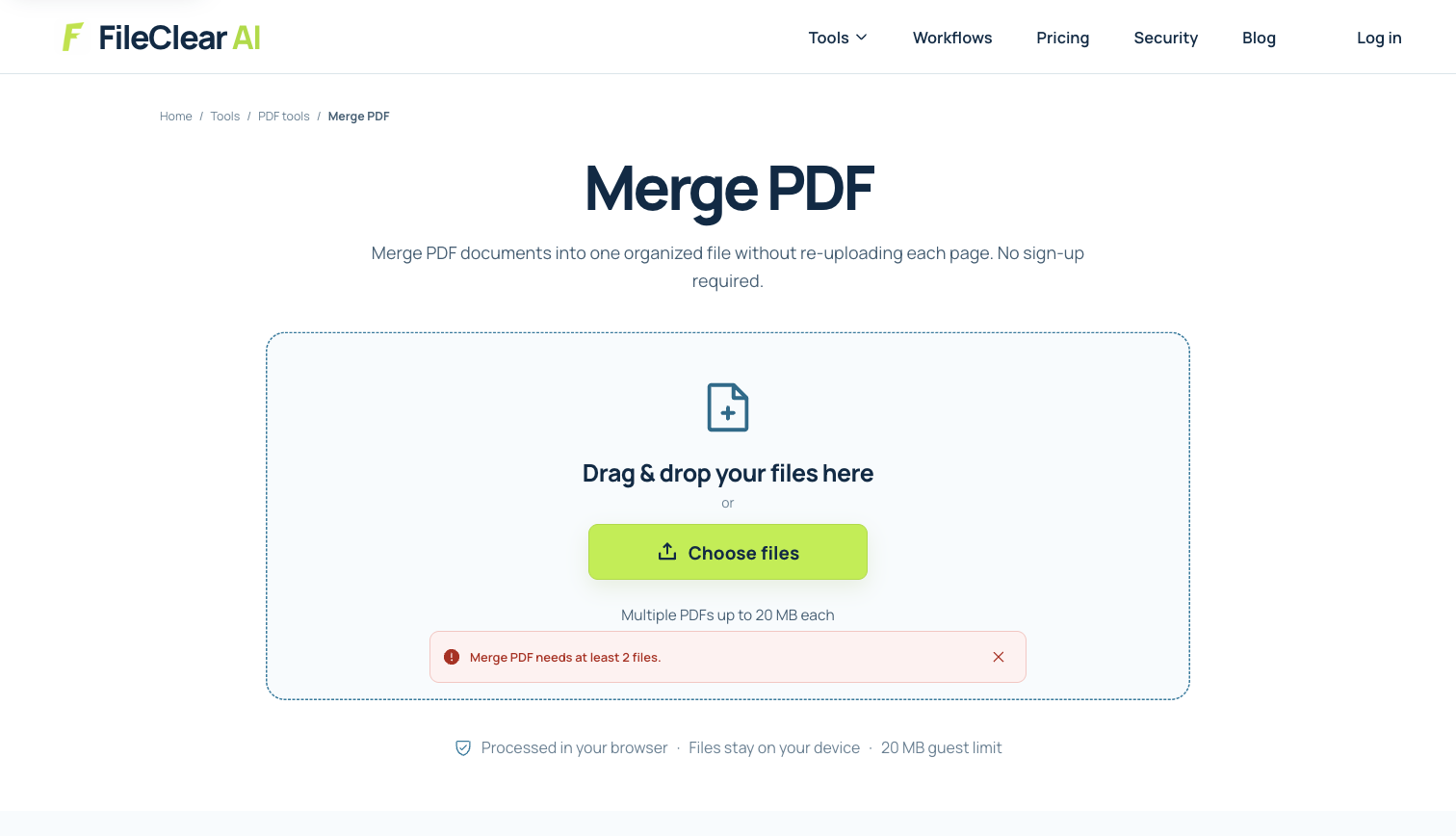
Merge PDF files in the exact order you need, verify every boundary, preserve the originals, and catch missing or duplicated pages before download.
Real-file case: build a controlled two-page merge test
We used a real one-page A4 resource PDF, made two clearly named working copies, and merged them as a controlled test. The pages look alike, so the exercise forces you to rely on the queue, filenames, expected page count, and boundary checks instead of assuming the thumbnails are correct.
- Source document: one page of real PDF content, not a placeholder illustration.
- Page size: A4 (595.28 × 841.89 points).
- Original file size: 3.95 MB.
- Controlled merge: two named copies should produce one two-page PDF.
1. Write the final PDF order before uploading anything
Start with a short page manifest. List each input filename, what it contains, its expected page count, and its position in the final document. A useful business packet might be 01-cover.pdf, 02-proposal.pdf, 03-pricing.pdf, and 04-terms.pdf. Prefixing filenames with zero-padded numbers makes the intended sequence visible even when a file picker sorts alphabetically. Keep the untouched originals in a separate folder and merge copies, because an accidental reorder is easier to correct when the source set remains unchanged.
Do not trust printed page numbers alone. A cover can be unnumbered, introductory pages may use Roman numerals, and the page number shown by a viewer can differ from the number printed in a footer. Record both the physical position and any visible label when the distinction matters. Check whether a section starts on a right-hand page, whether a deliberately blank page supports duplex printing, and whether an attachment belongs before or after the signature page. Those decisions define the correct order before the tool does any work.

2. Add the PDFs and arrange the merge queue
Open Merge PDF, add at least two files, and compare the queue with your manifest. Drag each file into its intended position before starting the merge. When a filename is truncated, pause and inspect the full name rather than guessing from a similar icon. If two inputs have the same name, rename the working copies first. A predictable filename such as contract-v3-signed.pdf is safer than final.pdf, final-2.pdf, and final-final.pdf, especially when several people prepared different sections.
The order shown in the queue becomes the page sequence in the output. That makes file-level order easy to control, but it does not repair pages that are already scrambled inside one input. Open any suspect PDF first and review its thumbnails. If pages within that file are wrong, rearrange them before merging. Remove accidental duplicates from the queue, and do not include an encrypted PDF unless you are authorized to open it and the merge workflow supports it. Password protection and digital signatures can prevent or complicate structural changes.
3. Use the real A4 case to make the result measurable
Download the case PDF and create two working copies named 01-resource-page.pdf and 02-resource-page.pdf. Add the second copy first, then drag the first copy above it. The visual pages are intentionally identical, so the filenames in the queue are the only reliable ordering signal. Merge the files and expect exactly two pages. This is a useful dry run for a larger job because it proves that you understand the queue without exposing a confidential contract, statement, or application during practice.
For a real multi-file project, make the test stronger by placing a small, non-sensitive identifier in the filename and manifest, not by writing over the document. After merging, compare the first page of each source section with the page at the corresponding boundary in the output. If the first source has 12 pages, the next source should begin on physical page 13. Repeat that arithmetic for every input. A merged file that opens successfully can still contain a duplicated cover, a missing appendix, or two sections in reverse order.
4. Verify page count, boundaries, navigation, and signatures
First compare the output page count with the sum of all input page counts. Then inspect the first and last page of the merged PDF and both sides of every file boundary. Check orientation, page size, small text, links, form fields, bookmarks, comments, and attachments that should remain. Search for a distinctive phrase from each section when the source contains searchable text. For scanned pages, zoom into signatures, totals, dates, and fine print because those details can look acceptable in thumbnails but fail at reading size.
Merging changes the document structure and normally creates a new file, so do not assume an existing digital signature remains valid. Keep signed originals as separate records and verify the signature status of any output that is expected to retain one. Also check bookmarks: some merge workflows keep source bookmarks, some rebuild them, and some omit them. Open the result in a second PDF viewer before sending it. Compatibility testing matters most when the file contains forms, layers, portfolios, unusual page sizes, or accessibility tagging.
5. Name, compress, and share the approved merged PDF
Give the approved output a descriptive name such as vendor-proposal-2026-08-23.pdf and preserve the merge manifest until the recipient accepts the file. Avoid sensitive account numbers, diagnoses, or passwords in filenames because filenames appear in email notifications, logs, and shared-folder histories. If the result is too large for its destination, compress the verified merged copy rather than compressing every input with inconsistent settings. Compare the compressed result with the approved merge before replacing anything.
Finally, send only the intended derivative and keep the originals according to your retention policy. A merge is an organization step, not redaction: deleted or omitted pages may be gone from the output, but confidential content on retained pages, in annotations, or in attachments can remain. Use secure redaction for material that must be removed. A dependable merge finishes with a known source set, a documented order, a matching page count, inspected boundaries, and a recipient-ready filename—not merely a successful download notification.
Continue this file task
Related guides
Frequently asked questions
- How do I merge PDFs in a specific order?
- Put the files in the merge queue in the exact sequence you want, compare the queue with a written manifest, and then verify every source-file boundary in the downloaded PDF.
- Why are my merged PDF pages out of order?
- The file picker may have sorted filenames differently, or pages were already out of order inside an input. Use zero-padded filenames, reorder the merge queue, and inspect each source PDF before combining it.
- Does merging PDFs reduce quality?
- A structural merge should normally preserve existing page content, but some tools may convert or recompress inputs. Compare detailed pages, fonts, links, forms, and file size before sharing the result.
- Can I merge signed or password-protected PDFs?
- Restrictions vary, and structural changes can invalidate signatures. Keep signed originals, unlock only documents you are authorized to modify, and verify signature status and security after processing.
Sources and further reading
- Combine files into one PDF in Acrobat — Adobe Acrobat Help
- Rearrange or resize combined files — Adobe Acrobat Help
- Combine PDFs in Preview on Mac — Apple Support