How to Make All PDF Pages the Same Size Before Merging
By John Wang · Published 2026-08-23 · Updated 2026-08-23
Standardize mixed PDF page sizes before merging, without stretching content or claiming a false one-size-fits-all result.
Real-file case: use one known A4 page as the size reference
This tutorial uses a genuine one-page A4 resource PDF as the known reference file. It demonstrates how to inspect dimensions and prepare a consistent working copy before a hypothetical mixed-size merge. It does not claim that a second, differently sized PDF was processed or that a mixed-size output was generated.
- Source document: one real PDF page with text and graphical content.
- Page size: A4 (595.28 × 841.89 points).
- Original file size: 4,145,961 bytes.
- Scope: the file is the measured reference for a pre-merge page-size workflow, not evidence of a completed mixed-size merge.
1. Inventory page dimensions before choosing a target
Open every source PDF and record its page count, orientation, and displayed page dimensions. A document that looks uniformly A4 in thumbnail view can still contain a Letter cover, a landscape table, a receipt-sized scan, or a page whose CropBox is smaller than its MediaBox. Note which pages are genuinely different and which only appear different because the viewer is fitting them to the same window. Keep the originals untouched and perform structural changes on clearly named working copies.
Decide why consistent dimensions are needed. A client packet may need a steady reading canvas, a print shop may require a defined sheet size, and a booklet may need margins that survive duplex binding. The correct target follows the destination rather than whichever input was uploaded first. Also distinguish page-size consistency from orientation consistency: an A4 landscape page and an A4 portrait page use the same sheet standard but exchange width and height, so forcing both into portrait can make the landscape content unnecessarily small.

2. Choose fit, fill, or no scaling deliberately
For most documents, proportional fit is the safest starting point: it scales the complete source page until it fits inside the target canvas and uses padding where the aspect ratios differ. Fill enlarges content until the target is covered, which can crop an edge. Stretching width and height independently can distort logos, type, diagrams, signatures, and machine-readable codes, so avoid it for document normalization. If the source is already smaller than the target, decide whether it should remain at 100 percent with extra margins or be enlarged, because enlargement can expose scan blur without adding detail.
Treat margins as functional space, not wasted area. A centered Letter page fitted onto A4 can leave a small border, while a wide slide fitted onto portrait A4 can leave much larger blank bands. That may be preferable to clipped content. Confirm the expected print area, binding gutter, annotations, page numbers, and accessibility needs before reducing scale. Cropping, resizing, and compressing solve different problems: cropping changes the visible boundary, resizing changes the target page canvas, and compression changes storage. Do not use one operation as a substitute for another.
3. Resize a working copy with the real A4 case
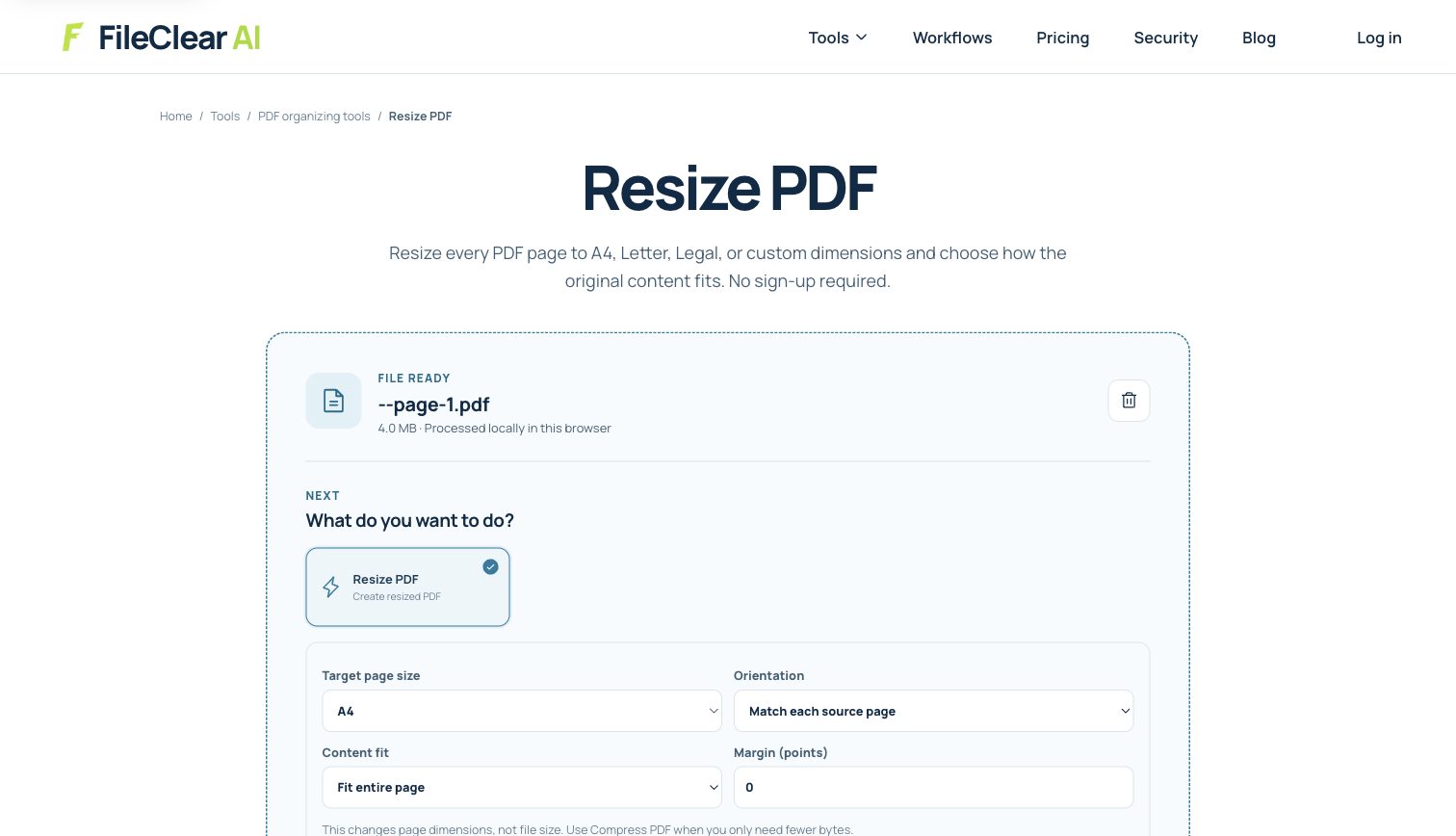
Download the real case PDF, preserve it unchanged, and upload a working copy to Resize PDF. The file contains one A4 page measuring 595.28 × 841.89 points and is 4,145,961 bytes, which gives you a known baseline for checking the controls. Select the intended target rather than assuming a preset matches the source, keep proportional fitting enabled when available, and review the preview for new borders or clipping. If A4 is the target, this file functions as the reference that other authorized inputs would need to match.
The screenshot records the actual ready state for this source, but the exercise does not include a second differently sized PDF and does not claim a mixed-size output. To extend the workflow with your own files, inspect each input independently, resize only the copies that do not meet the chosen specification, and name derivatives clearly, such as appendix-letter-fitted-to-a4.pdf. If the tool reports that no safe size change is needed, keep the original page instead of rewriting it merely to produce a new download.
4. Merge only after every derivative passes inspection
Open each resized derivative in a separate viewer and compare it with its source. Confirm page count, orientation, visible dimensions, text selection, links, form fields, annotations, bookmarks, and signature status where relevant. Inspect fine print and all four edges at 100 and 200 percent zoom. A page can be the correct physical size and still be unusable because text became too small, a wide table was clipped, or a form field remained at an unexpected coordinate. Preserve any signed original because structural edits can affect signature validity.
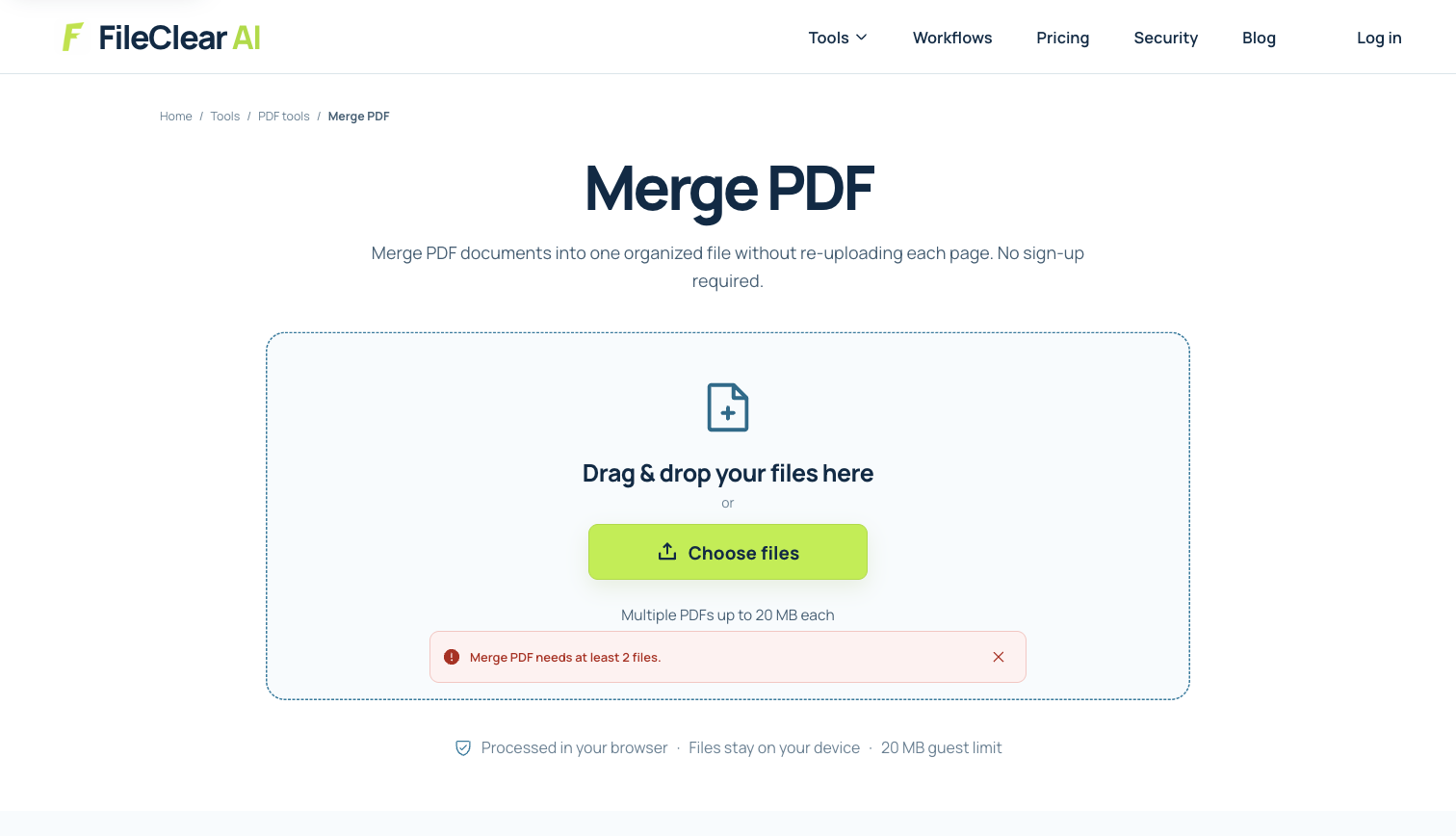
After the individual files pass review, add them to the merge queue in the intended order. Page-size normalization does not determine sequence, so compare the queue with a written manifest and check every file boundary in the combined PDF. The merge screenshot illustrates that separate final step; it is not presented as the result of this one-file case. Verify the combined page count and sample the first and last page of each source section before naming the release copy.
5. Verify the combined PDF for screen and print use
Review the final derivative in thumbnail view and with page properties visible. Check that the intended pages share the target dimensions, while any deliberately preserved foldouts or landscape pages remain understandable. Use print preview with the actual destination paper setting and disable automatic scaling when you need to inspect the PDF's own geometry. Then test required search, copying, links, forms, bookmarks, and reading order. A visually consistent canvas is not proof that interactive or accessible structure survived processing.
Keep the source files and a short record of the target size, scaling mode, page ranges, and exceptions. Do not promise that making pages the same size reduces file size or improves resolution; resized PDFs can stay similar in size or become larger, and enlarged scans do not gain detail. If delivery size is a separate problem, compress the approved merge and compare it again. A trustworthy workflow makes its decisions explicit: measured inputs, destination-based target, proportional fitting, inspected derivatives, deliberate merge order, and a final compatibility check.
Continue this file task
Related guides
Frequently asked questions
- Why are some pages smaller after I merge PDFs?
- PDF pages can have different physical dimensions or page boxes even when the viewer fits every thumbnail to the same size. Inspect each source, choose a destination-based target, and resize only the necessary working copies before merging.
- Should I make every PDF page A4 before merging?
- Only when A4 suits the destination. Letter may be correct for another workflow, and landscape tables or foldouts may need an intentional exception. Consistency should not make content unreadable or clip meaningful edges.
- How do I resize PDF pages without stretching the content?
- Use proportional fit so the complete source page remains inside the target canvas. Accept padding when aspect ratios differ, and inspect small text, diagrams, signatures, and codes before approving the derivative.
- Will resizing PDF pages reduce the file size?
- Not necessarily. Page dimensions and stored bytes are different concerns, and rewriting can leave the file similar in size or make it larger. Compress only after the layout has been approved and verify quality afterward.
Sources and further reading
- PDF Reference, Sixth Edition, version 1.7 — Adobe
- Crop PDF pages and adjust page boxes — Adobe Acrobat Help
- Rearrange or resize combined files — Adobe Acrobat Help