Why Do Rotated PDF Pages Turn Back? Fix PDF Rotation Permanently
By John Wang · Published 2026-08-23 · Updated 2026-08-23
Find out why PDF rotation resets after reopening, downloading, or printing, and learn how to save page orientation permanently with a real PDF.
Case file: a sideways test using a real A4 PDF
The same genuine PDF is rotated, downloaded under a new name, reopened in another viewer, and checked at print preview to separate saved page rotation from temporary view rotation.
Open the real PDF rotation case
- The source is a 1-page A4 PDF.
- The original file is 3.95 MB.
- The result is reopened from the downloaded file, not judged only in the processing preview.
Rotate view and rotate pages are different commands
The most common reason a PDF turns back is that the viewer rotated only the current view. Browser PDF controls and desktop reader menus often include a clockwise button that helps you read a sideways page without modifying the file. Close the tab, refresh it, open the file elsewhere, or send the original attachment, and the old orientation returns. Adobe explicitly distinguishes temporary Rotate View from Rotate Pages in the Organize Pages tool. Only the page operation is intended to be saved with the document.
A saved PDF page can carry a rotation value in 90-degree increments. The viewer uses that page property when it renders the media box and content. This is a valid permanent document change even though the underlying drawing coordinates may not be rewritten. Some conversion or document-generation pipelines rebuild pages and can drop or normalize that property, so always inspect the actual derivative delivered to the next step. Rotating a laptop display, phone screen, scanned image preview, or print dialog does not modify the PDF page either.
Save permanent rotation with the real case file
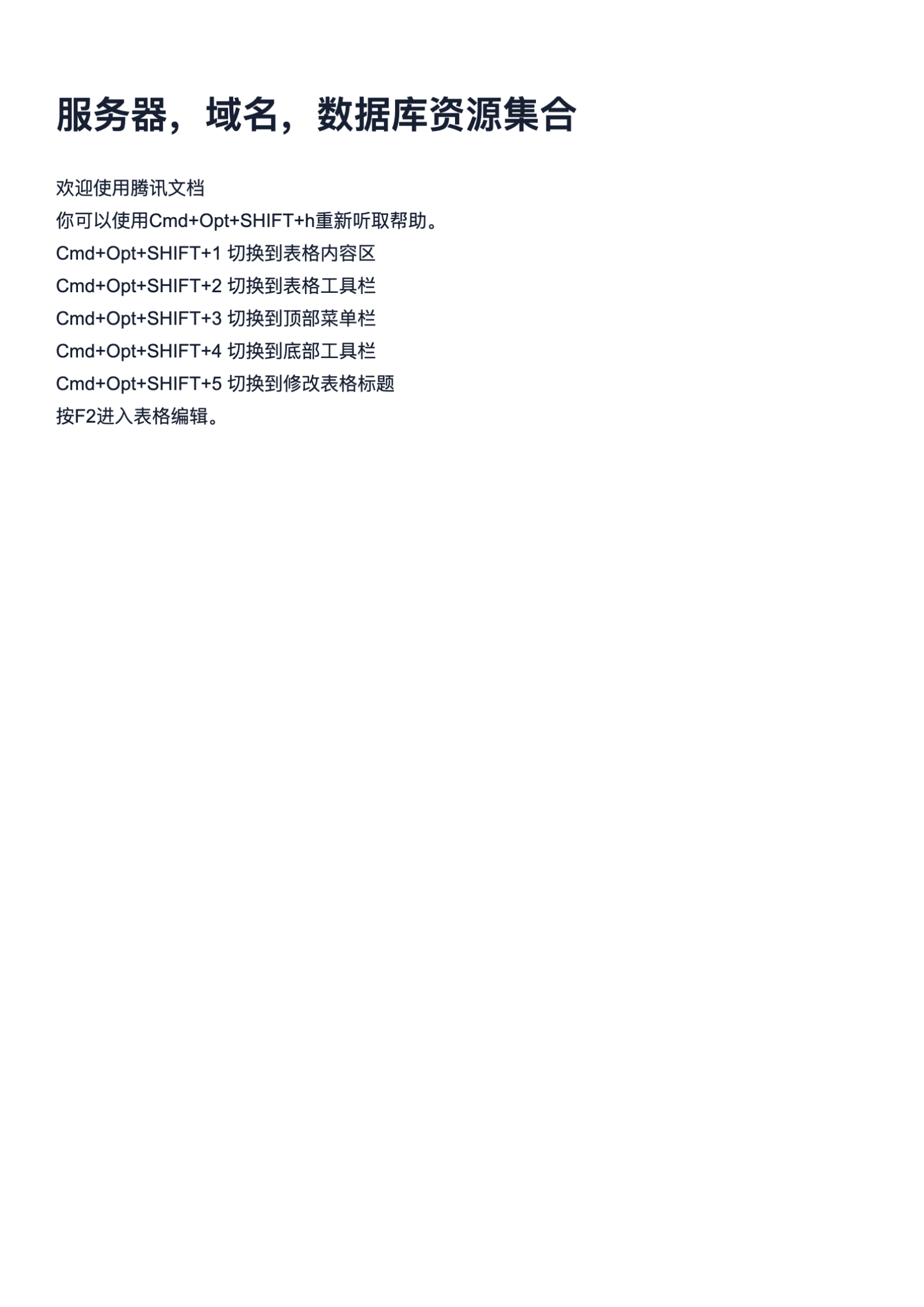
Open the 1-page A4 case PDF in FileClear AI Rotate PDF. Choose 90 degrees clockwise, 90 degrees counterclockwise, or 180 degrees according to the intended reading direction, then process the file. Download the result with a new name. Do not keep working from the original browser tab: open the downloaded derivative from disk, close and reopen it, and check it in a second PDF viewer. That sequence confirms that you changed the document rather than the temporary display state.
The source case is 3.95 MB, so the rotation itself should not be treated as compression. The settings screenshot records the control used in the demonstration. On a multi-page scan, select the precise page range and inspect thumbnails before applying the change. Odd, even, portrait, and landscape pages can require different directions. Rotate one representative page first when the file includes forms, annotations, digital signatures, unusual page sizes, or accessibility tags, because any saved modification can affect signature validity or downstream document behavior.
If rotation still resets, trace which file and operation you used
Check the filename and modification time first. Downloads often add a number or suffix, and it is easy to reopen the unchanged source from a recent-files list. Confirm that processing completed and that you downloaded the result, not the original upload. If the file is read-only, password-restricted, digitally signed, or opened from an email preview or managed document system, the application may prevent saving changes or show a cached copy. Save an authorized derivative locally and repeat the open-close-open test.
Next, identify any step that rebuilds the PDF after rotation. Scanning apps, print-to-PDF drivers, OCR tools, page extractors, office exports, and upload portals may generate a new document using their own orientation logic. Perform rotation after the rebuilding step when possible. If a downstream system ignores a correct page rotation property, a final visual normalization that renders the page in the intended orientation can improve compatibility, but it may rasterize text and remove links, forms, tags, annotations, and digital signatures. Use that tradeoff only when the destination truly requires it.
Check printing, page boxes, and mixed orientations
A page that opens correctly can still print sideways if the print dialog forces portrait or landscape, disables automatic orientation, or uses a paper source that conflicts with the PDF page size. Review the print preview and test one page before sending a long job. Auto-rotate in a print dialog is a printing choice, not a saved page edit. For A4 and Letter documents, verify both the visible orientation and the selected paper size; rotation does not convert one paper standard into another or repair content cropped outside a page box.
Finish with thumbnails of every page, then reopen the final file in another viewer. Confirm first and last pages, every transition between portrait and landscape, page numbering, selectable text, links, form fields, and any required annotations. If a document was digitally signed, validate the signature after the change and preserve the signed original. A rotation is permanent when the intended page property or normalized content is present in the downloaded derivative, survives reopening, and reaches print preview correctly — not merely when one viewer happens to display it upright.
Use a rotation release checklist for recurring documents
For recurring packets, record the expected orientation of every page type before processing. A practical checklist names the source, page range, intended portrait or landscape state, paper size, and any downstream printing requirement. Apply rotation to a copy, give the derivative a distinct filename, and record whether another operation such as OCR, page extraction, merging, or print-to-PDF will rebuild it later. This small manifest prevents a correct intermediate file from being confused with the unchanged source or overwritten by a later conversion.
Have the final reviewer open the downloaded derivative from disk, not from the processing tab or recent-files shortcut. Compare thumbnails, reopen the file, and inspect print preview in the application that will actually produce the document. When several people exchange the PDF, include the approved filename and page count in the handoff rather than saying only that it was fixed. A repeatable check proves which artifact survived reopening and printing, while preserving the signed or archival original separately for evidence and recovery.
Continue this file task
Related guides
Frequently asked questions
- Why does my PDF rotate back after I close it?
- You probably used a temporary Rotate View command or reopened the unchanged source. Use a page-rotation tool, save or download a new derivative, and reopen that downloaded file to verify the change.
- Is the rotate button in a browser PDF viewer permanent?
- Usually it changes only the current viewing session. Browser controls vary, so treat rotation as temporary unless the viewer explicitly saves a modified PDF and you confirm the downloaded result.
- Why does a correctly rotated PDF still print sideways?
- The print dialog can impose its own portrait, landscape, auto-rotate, centering, or paper-source settings. Check print preview and test one page without assuming display orientation controls print orientation.
- Will rotating a PDF invalidate its digital signature?
- It can. A saved rotation changes the document after signing, so preserve the signed original and validate signature status on any derivative used in a controlled workflow.
Sources and further reading
- Adjusting PDF views — Adobe Acrobat Help
- Rotate pages in PDFs — Adobe Acrobat Help
- Crop or rotate a PDF in Preview on Mac — Apple Support