Why Can’t I Select, Copy, or Search Text in a PDF?
By Sherry · Published 2026-08-23 · Updated 2026-08-23
Diagnose image-only scans, outlined fonts, permissions, and broken text layers, then choose OCR or extraction without losing the original PDF.
Case file: test a real one-page PDF before running OCR
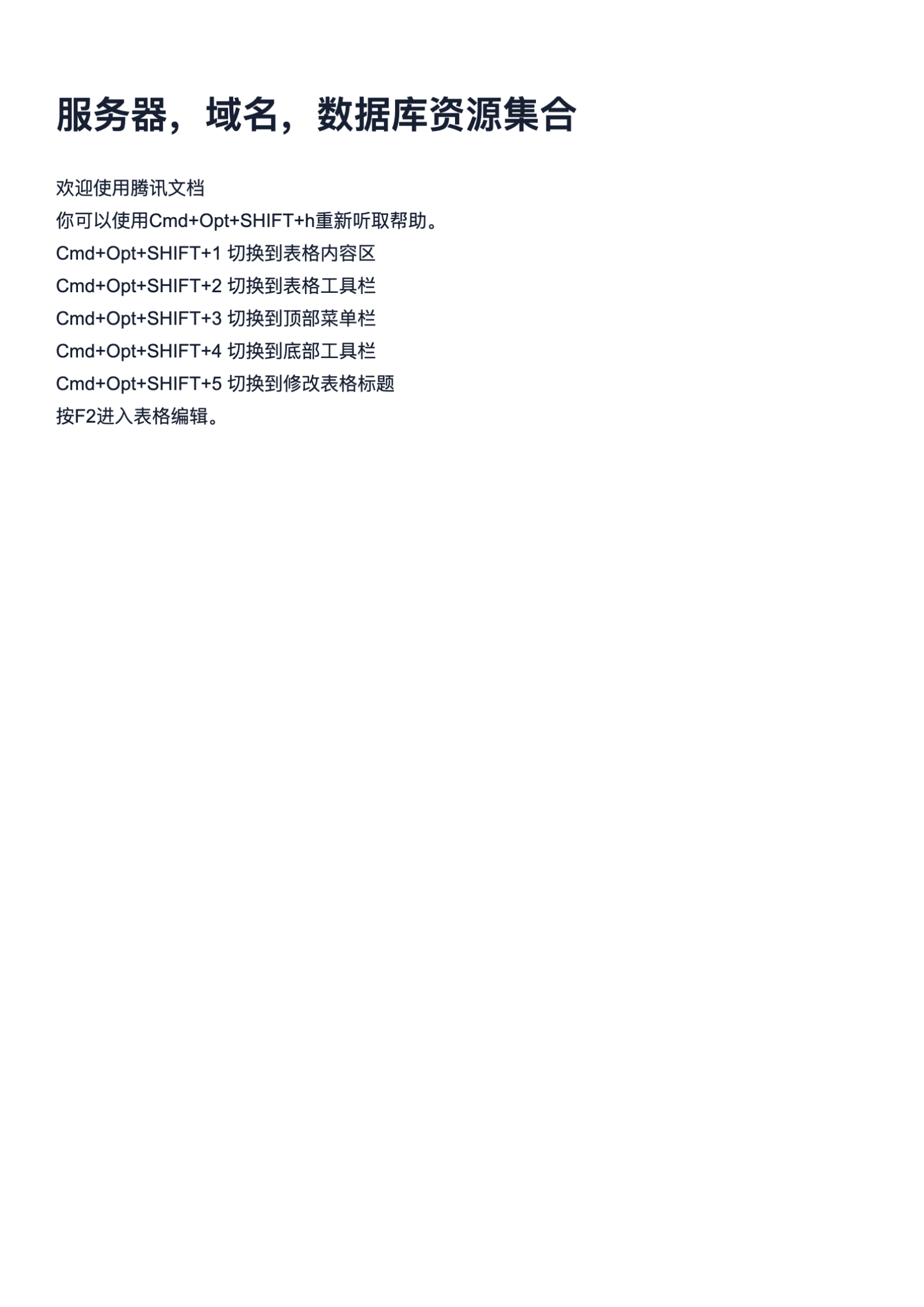
We use a genuine A4 PDF to show how selection, search, copy-and-paste, document restrictions, and text extraction reveal what the file actually contains before any conversion is attempted.
Open the real PDF diagnostic case
- The source is a 1-page A4 PDF.
- The original file is 4,145,961 bytes (about 3.95 MB).
- The original is kept unchanged while OCR, if needed, is applied to a working copy.
First identify whether the page has a usable text layer
A PDF is a container, not a promise that the visible letters are real text. A scanner may store each page as one photograph; a design application may convert letters to vector outlines; a damaged export may omit character mappings; or a viewer may block selection because the document has restrictions. Each case looks similar at first, but only an image-only page needs conventional OCR. Open the PDF in two viewers, try selecting one word, search for a distinctive phrase that is visibly present, and zoom in. A scan often shows pixel edges and selects the entire page as one object, while outlined letters stay sharp but still cannot be searched.
Use copy and paste as a separate test. If selecting works but pasted text is blank, garbled, or out of order, the file probably contains text objects with an encoding or reading-order problem; OCR may create a cleaner alternative layer, but PDF-to-text diagnosis should come first. If selection is disabled everywhere, inspect document properties for copying restrictions and confirm you are authorized to work with the file. A browser preview can also expose fewer capabilities than a dedicated reader. The decision is therefore: image pixels mean OCR, usable text means extraction, malformed text needs encoding or OCR comparison, and restricted text needs authorization rather than a technical workaround.
Choose OCR only for the pages that need it
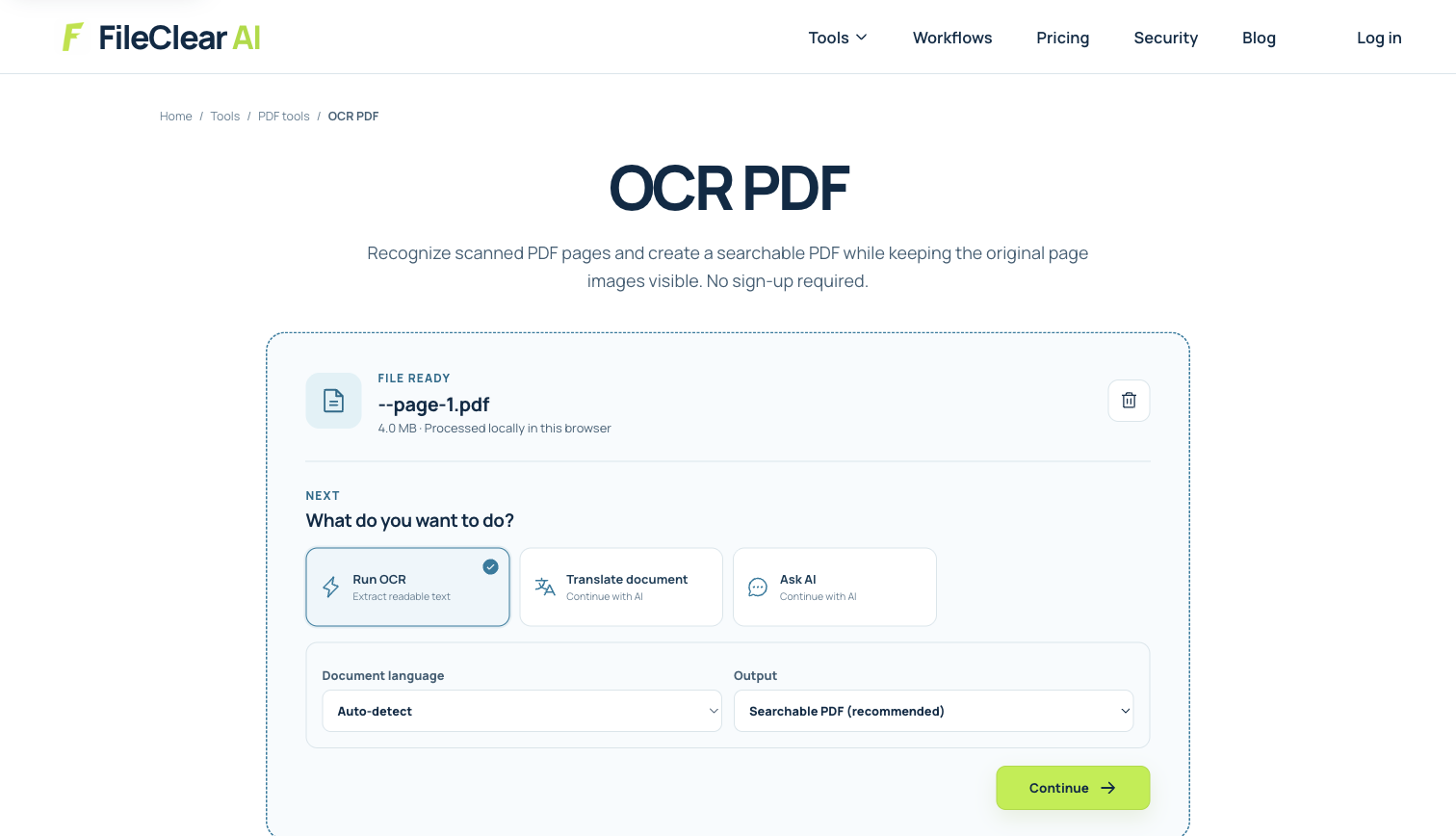
Keep the original PDF, then upload a working copy to OCR PDF. Select the document language that matches the printed text; a wrong language model can confuse accented letters, punctuation, and similar glyphs. Apply deskew or page rotation first when lines are visibly tilted. If only several pages are scanned inside an otherwise searchable document, process the affected pages when the workflow supports page selection instead of rebuilding every page. Existing high-quality text should not be replaced casually because OCR is a statistical interpretation, not a lossless recovery of the source characters.
The settings screenshot records the real OCR entry point used for this case, but it does not claim a particular recognition score or successful output. Results depend on resolution, contrast, language, typography, page structure, and the source PDF. After processing, download a new derivative and leave the original untouched. A searchable-PDF workflow commonly preserves the visible page image and adds an invisible text layer aligned behind it. That is useful for search and accessibility review, but it does not automatically turn the document into a clean, reflowable Word file or reconstruct headings, tables, and reading order.
Verify searchability instead of trusting the preview
Open the downloaded result in a second viewer and search for several visible phrases: one near the top, one in the middle, and one near the bottom. Include names, numbers, punctuation, and words with similar characters such as 0/O or 1/l. Select a sentence, paste it into a plain-text editor, and compare it character by character with the page. Then use PDF to Text on an authorized copy and inspect whether line breaks and reading order are usable. A phrase appearing in search proves only that those characters exist somewhere in the text layer; it does not prove that every word, column, or table cell was recognized correctly.
Check alignment by dragging across words at high zoom. If the selection highlight sits above, below, or across the wrong line, the OCR layer may have been placed inaccurately. Review page count, page dimensions, links, annotations, and file size as well, especially if a downstream portal has limits. For a mixed document, test both an original digital page and a scanned page. The result is ready when the required phrases can be found and copied accurately enough for the intended task, visual pages remain intact, and known uncertainties have been recorded—not merely when a tool labels the job complete.
Know when OCR is the wrong repair
Do not OCR a PDF merely because one browser will not let you select text. First rule out a temporary viewer limitation, a secured document, text hidden behind an overlay, or a malformed font mapping. If a digital PDF already copies mostly correct text, a targeted extraction workflow can preserve more of the original semantics than OCR. If the file is signed, processing will normally produce a modified derivative whose signature status differs from the signed original. Preserve the signed source and follow the document owner’s policy before altering it.
OCR is also not a substitute for accessible document remediation. A hidden text layer may enable search while headings, lists, form labels, table headers, language metadata, and logical reading order remain absent. For records that must meet accessibility or legal requirements, review the tag tree and reading sequence with appropriate tools and human judgment. Use OCR to recover characters from pixels, then validate and remediate the representation required by the final audience. That narrow definition prevents an apparently searchable PDF from being mistaken for an accurate, editable, or accessible document.
Document the searchable result before handing it downstream
Record which pages received OCR, the selected languages, any orientation correction, and the phrases used for verification. Keep the source and searchable derivative under distinct filenames, then tell downstream users whether the text layer is intended for discovery, copy and paste, accessibility work, or automated extraction. Those uses have different accuracy requirements. A search aid may tolerate an occasional punctuation error, while account numbers, legal clauses, or table values require exact review against the visible page.
If another system will index or summarize the PDF, test a small representative set before processing the full collection. Confirm that page references remain stable and that the system does not treat hidden OCR errors as authoritative facts. Preserve the visual page as evidence, attach corrections to a reviewed derivative rather than silently editing the source, and state known limitations. This handoff makes the document useful without overstating what selectability or successful search actually proves.
Continue this file task
Related guides
Frequently asked questions
- Why does my PDF look like text but I cannot select any words?
- The page may be a scan, the letters may be vector outlines, the text layer may be malformed, or the viewer or document permissions may restrict selection. Test search, zoom, paste, properties, and a second viewer before choosing OCR.
- Will OCR change the visible appearance of my scanned PDF?
- A searchable-PDF workflow often keeps the page image and adds an aligned invisible text layer, but implementation details vary. Always compare the downloaded derivative with the source and preserve the original.
- Why can I select PDF text but search still misses words?
- Character encoding, ligatures, incorrect Unicode mappings, fragmented text objects, or OCR recognition errors can make visible words differ from the underlying searchable characters. Paste and extraction tests help identify the failure.
- Does searchable PDF mean the document is accessible?
- No. Searchable characters do not guarantee headings, table structure, alternate text, form labels, document language, or logical reading order. Accessibility needs a separate structural review.
Sources and further reading
- Scan documents to PDF and recognize text — Adobe Acrobat Help
- Improve OCR quality — Tesseract OCR documentation
- PDF/UA and accessibility — PDF Association