How to Make a Scanned PDF Searchable with OCR
By Sherry · Published 2026-07-17 · Updated 2026-09-05
Make a scanned PDF searchable with FileClear AI. Choose PDF, TXT, or Markdown output, check the 25-page OCR limit, and review recognition errors.
Anonymous one-page OCR verification case
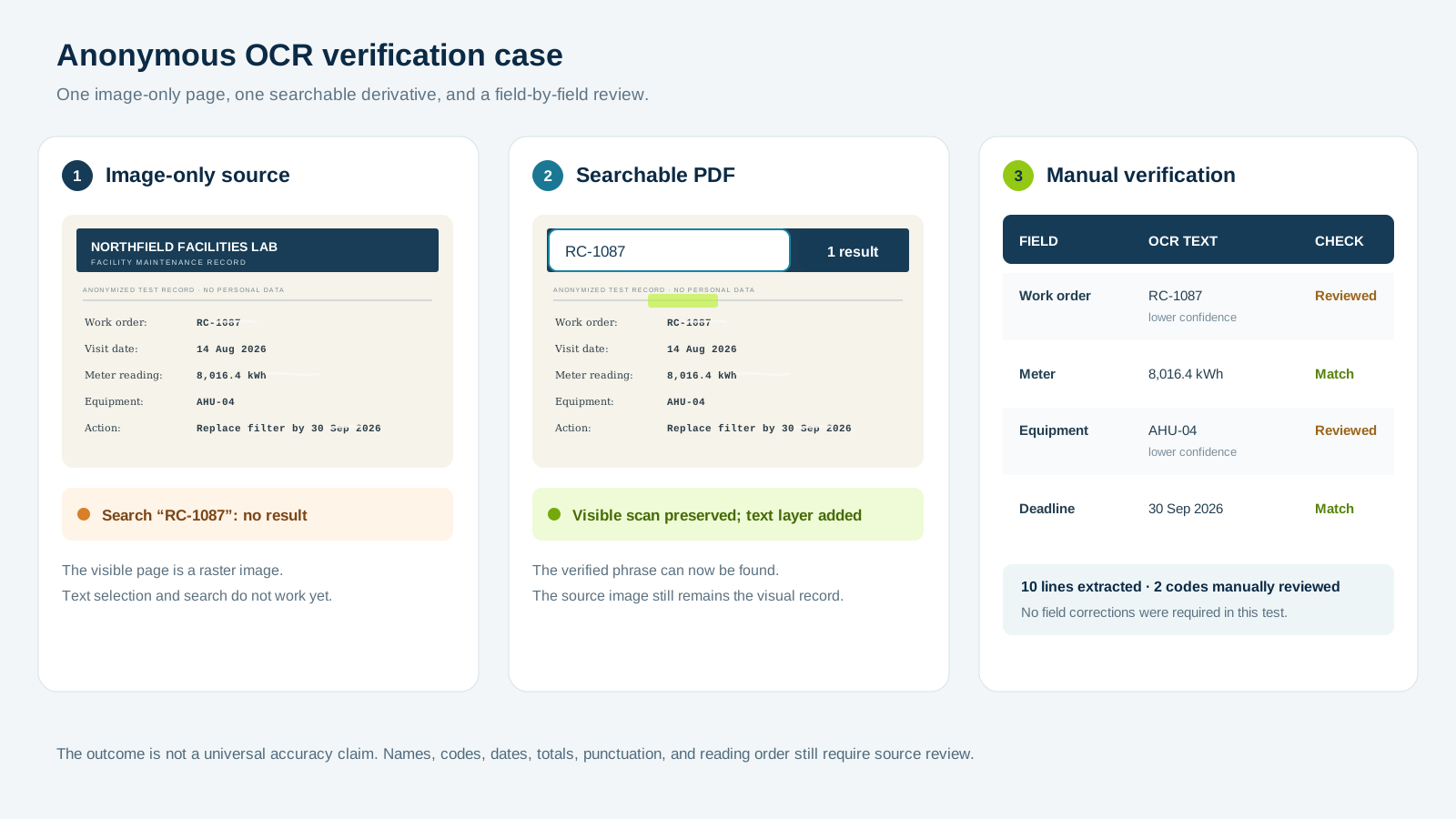
A non-sensitive maintenance record was flattened into an image-only page, checked with OCR, and saved as a separate searchable PDF after the recognized text was verified against the visible source.
Open the searchable sample PDF
- Input: one raster page; search and text selection were unavailable before OCR.
- Search test: the verified work-order code RC-1087 returns one result.
- Review: all 10 lines matched; two lower-confidence code fields were checked manually.
Understand how PDF text recognition works
PDF text recognition is needed when a scanned PDF contains one image per page instead of selectable characters. The document may look ordinary, but the viewer cannot identify the letters, words, or reading order inside those images. Optical character recognition, usually called OCR, analyzes the pixels and creates machine-readable text. A common output keeps the original page image visible while adding an invisible text layer behind it. That layer enables search, selection, copying, indexing, and some accessibility tools. Another output may reconstruct editable text and layout. The first approach preserves appearance more reliably; the second is easier to edit but may require more correction. Choose based on what you need after recognition.
OCR does not understand a page in the way a person does. It estimates characters and structure from visual patterns. Accuracy depends on resolution, contrast, language, typography, page geometry, and document complexity. A clean printed page can produce excellent text, while a skewed fax with handwriting and stamps can produce serious errors. Recognition can also confuse column order, headers, footnotes, and tables even when individual words are correct. Treat OCR as an extraction step that creates a useful draft, not as proof that the underlying document says what the extracted text claims.
Prepare the scan before recognition
Good OCR begins before the OCR button. Scan pages straight, with even lighting and enough resolution to preserve letter shapes. Around 300 dpi is a useful general target for normal printed text; tiny type or degraded originals may need more. More resolution is not always better because very large images slow processing and can emphasize paper texture. Avoid aggressive photo filters that erase punctuation or thin strokes. Crop away desk edges, align rotation, and keep a small margin around the content. If pages are upside down or mixed in orientation, correct them first. A consistent input allows the recognition engine to make more consistent decisions.
Contrast should separate text from the background without erasing faint content. Pure black-and-white conversion can work for clean laser-printed pages, but grayscale may preserve pencil notes, stamps, or lightly printed characters. Color may be necessary when annotations carry meaning. Remove blank pages and duplicates, and place pages in the correct order. If the document has two-page spreads, split them into individual pages before OCR so columns are not blended. For camera photos, flatten perspective and reduce shadows across the binding. These simple preparation steps often improve accuracy more than switching between recognition engines.
Select language and layout settings carefully
Set the document language whenever the tool allows it. Language models help the engine distinguish similar shapes and choose plausible character sequences. Selecting English for a French document can damage accents and word boundaries. For multilingual pages, choose all relevant languages if supported, but avoid enabling a long list unnecessarily because a larger character set can introduce ambiguity. Confirm how the tool handles right-to-left text, vertical writing, mathematical notation, and non-Latin scripts. A document can also contain English body text with names or codes from another language, so review those areas even when the primary language is configured correctly.
Layout options matter for newspapers, forms, invoices, and tables. Automatic page segmentation is convenient, but a complex page may need zones or a mode designed for columns. Decide whether you want a searchable image PDF, plain text, or editable output. Searchable image is usually safest for archival appearance because readers still see the scan. Plain text is useful for analysis but loses visual structure. Editable documents attempt to rebuild paragraphs, columns, and tables, which makes errors more visible and sometimes harder to detect. Preserve page numbers or references so reviewers can trace extracted text back to the source image.
Verify words, order, and document meaning
Start review with high-risk content: names, addresses, dates, account numbers, totals, medication names, legal terms, and negations such as not or never. OCR commonly confuses zero with O, one with l or I, and punctuation with noise. Search for characters that matter in your domain, such as decimal points, minus signs, percent symbols, and currency marks. Compare a sample from the beginning, middle, and end, plus any visually difficult page. If the tool reports confidence, use it to prioritize review, but do not assume a high score proves accuracy. Context can make a wrong word look statistically plausible.
Reading order needs a separate check. Copy a page with multiple columns and paste it into a plain-text editor. Verify that sentences, headings, captions, and footnotes appear in a sensible sequence. Search for a phrase that crosses a line break. Test whether page numbers or repeated headers pollute results. For tables, confirm that values stay with the correct row and column; visually accurate text can become incorrect data when alignment is lost. If the output will feed search, translation, summarization, or automation, spot-check more pages because later systems can confidently amplify a small recognition mistake.
Make a scanned PDF searchable in FileClear AI
Open OCR PDF and choose one PDF. Leave Output set to Searchable PDF (recommended) to keep visible page images and add selectable text. Choose Plain text or Markdown only when you need extracted words rather than a PDF.
Select the document language, run OCR, and wait for the result. Open the searchable PDF, search for a distinctive word or code, then copy a sentence into a text editor. Check names, dates, amounts, punctuation, and reading order against the scan before using the result.
File limits, processing, and unavailable output
The public guest upload limit is 20 MB. The scanned-PDF OCR path currently accepts up to 25 pages per task. Split longer documents into smaller page ranges before OCR.
Your browser renders PDF pages into images for Cloudflare Workers AI. Searchable PDF output also uses Cloudflare Browser Run. FileClear AI does not save these uploaded bytes or generated results in R2. This describes FileClear AI storage, not a guarantee about Cloudflare's service-level retention.
If the OCR service or searchable-PDF renderer is unavailable, do not treat the request as a completed searchable PDF. Retry later, or choose TXT or Markdown when recognized text alone meets your need. A local preview can extract existing PDF text but cannot recognize an image-only scan without the connected service.
Fix difficult scans before trying again
For sideways pages or camera distortion, correct the source before OCR. Use Scan to PDF for document photos that need cropping or perspective correction. A sharper original is more useful than repeatedly recognizing a blurred image.
For mixed languages, names, handwriting, faint text, or stamps, inspect the recognized characters manually. If columns or table values appear in the wrong order, compare them with the page image. OCR creates text; it does not guarantee reliable spreadsheet rows or a fully accessible document.
Anonymous OCR case: scan, search, and verify
To demonstrate the review method without exposing a real person's document, we created a non-sensitive one-page facility maintenance record and flattened it into a raster page. Search and text selection were unavailable in the image-only source. A local OCR pass recognized ten lines, the text was checked against the visible page, and the verified text was added to a separate searchable PDF. Searching that derivative for the work-order code RC-1087 returns one result while the original scan remains visible.
No character correction was required in this particular test, but the work-order code and equipment code returned lower recognition confidence than the ordinary prose and date lines. Those two codes were compared manually, along with the meter reading and follow-up deadline. This single page is a verification example, not an accuracy rate or a promise about other documents. Faded paper, handwriting, mixed languages, columns, tables, and damaged characters can produce different results, so consequential fields still need the same source check.
Use searchable text responsibly
A good searchable PDF should retain the original appearance, expose accurate text, and remain easy to navigate. Add bookmarks or meaningful filenames when they help people find sections. Consider accessibility: OCR alone does not create a fully accessible PDF. Correct reading order, headings, alternative text, language metadata, and form labels may still be required. For official records, keep the original scan and store the OCR version as a derivative. That distinction preserves evidence while allowing search and analysis. Document the date and method of recognition if the extracted text may support a consequential decision.
Finally, consider privacy and retention. Scans frequently contain signatures, identity numbers, medical information, or internal records. Review whether the OCR service processes files locally or remotely, how transmission is protected, how long files remain, and how deletion works. Download the result, verify it, and delete temporary server copies when possible. OCR can turn a static archive into useful, searchable information, but its value depends on preparation and verification. Treat every extracted word as traceable to a page, keep the source available, and correct important errors before the text becomes the basis for another workflow.
Continue this file task
Related guides
Frequently asked questions
- How do I know whether a PDF needs OCR?
- Try to select and copy a known sentence, then search for a visible word. If the page is only an image or the text layer is unusable, OCR is the appropriate next step.
- Does OCR make every scanned PDF accurate?
- No. Rotation, language, resolution, handwriting, columns, tables, and compression artifacts affect recognition. Verify names, numbers, punctuation, and reading order against the visible page.
- Is a searchable PDF automatically accessible?
- No. Searchable text does not guarantee headings, table structure, alternate text, form labels, document language, or a logical reading order.
Sources and further reading
- Scan documents to PDF and recognize text — Adobe Acrobat Help
- Improve OCR quality — Tesseract OCR documentation
- PDF/UA and accessibility — PDF Association