Why Do PDF Table Columns Break When Exported to Excel?
By Leomeo · Published 2026-08-23 · Updated 2026-08-23
Learn why PDF tables split, merge, or shift during Excel export, diagnose text versus image tables, and verify rows, columns, totals, and types.
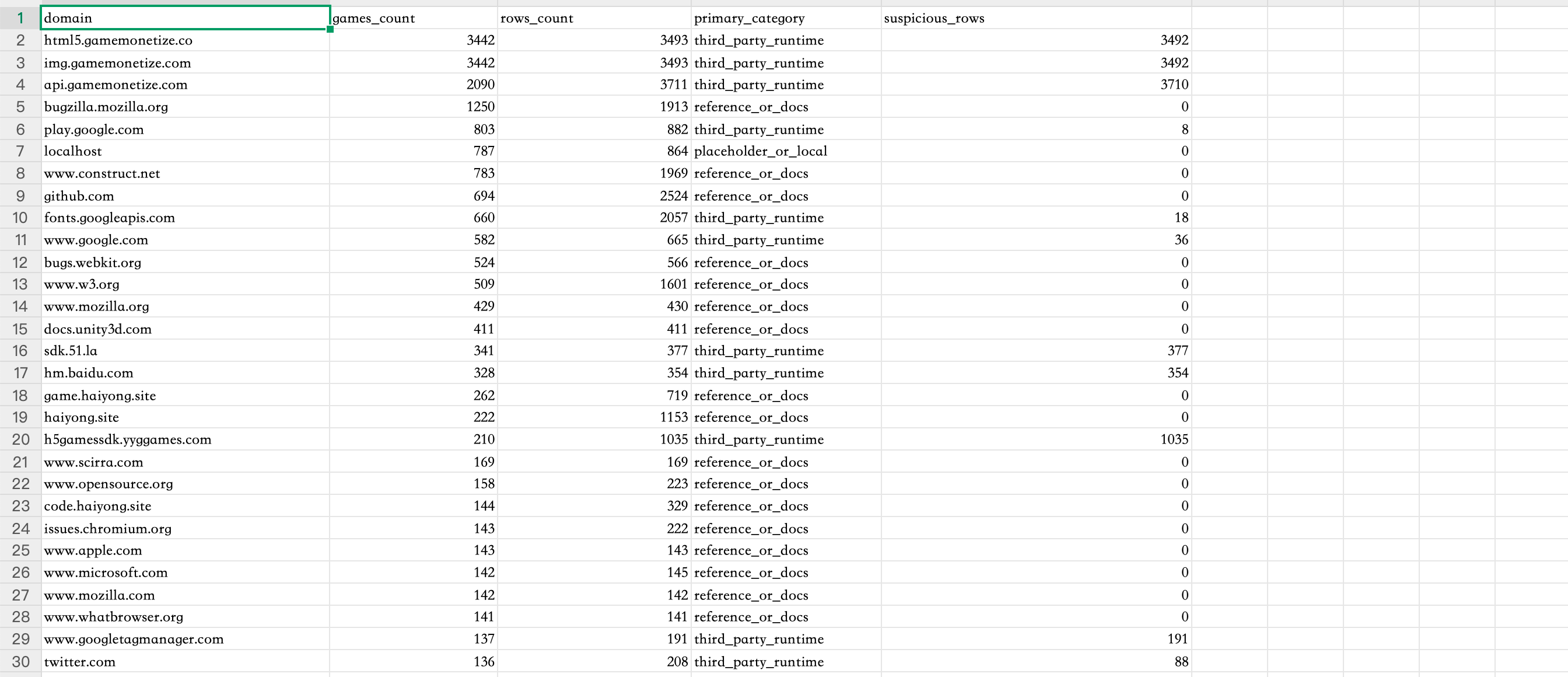
Case image: audit a real multi-column table before spreadsheet export
The real screenshot provides repeated rows, visible column boundaries, short labels, and numeric fields for testing whether extracted values remain associated with the correct headers.
Open the real table extraction case
- The source is a 2688 × 1160 PNG table screenshot.
- The original file is 280,365 bytes (about 274 KB).
- Validation focuses on structure and exact values; no unmeasured extraction accuracy is claimed.
A PDF page does not necessarily contain rows and columns
A spreadsheet stores cells, types, formulas, and relationships. A PDF primarily describes what should appear at page coordinates: draw these glyphs here, these lines there, and this filled rectangle behind them. Even a table exported from Excel may reach the PDF as separate text fragments without semantic cell boundaries. Extraction software must infer columns from x-positions, spacing, ruling lines, font changes, and repetition. Merged headers, wrapped descriptions, negative numbers, superscripts, and irregular row heights make several plausible grids possible.
First determine the source class. If you can select individual table text and paste recognizable values, the PDF has a text layer, though its reading order may still be fragmented. If the whole page selects as an image, OCR is required before or during table recognition. If visible text pastes as gibberish, encoding is an additional problem. Then classify the structural error: values shifted consistently one column suggest boundary detection; several values joined together suggest missing separators; one logical row split across lines suggests wrapping; and correct cells in a strange sequence suggest reading-order reconstruction.
Prepare the smallest clean table region
Use the original PDF or image at its native quality. Correct rotation and skew, then isolate the table without cutting off borders, headers, footnotes, minus signs, currency symbols, or wrapped text. When a page contains two unrelated tables side by side, extract them separately if the tool supports regions. Repeated page headers and footers can be mistaken for table rows, so note whether they should be removed after extraction. For borderless tables, consistent whitespace matters more than drawn grid lines; for ruled tables, broken or decorative lines can create false cells.
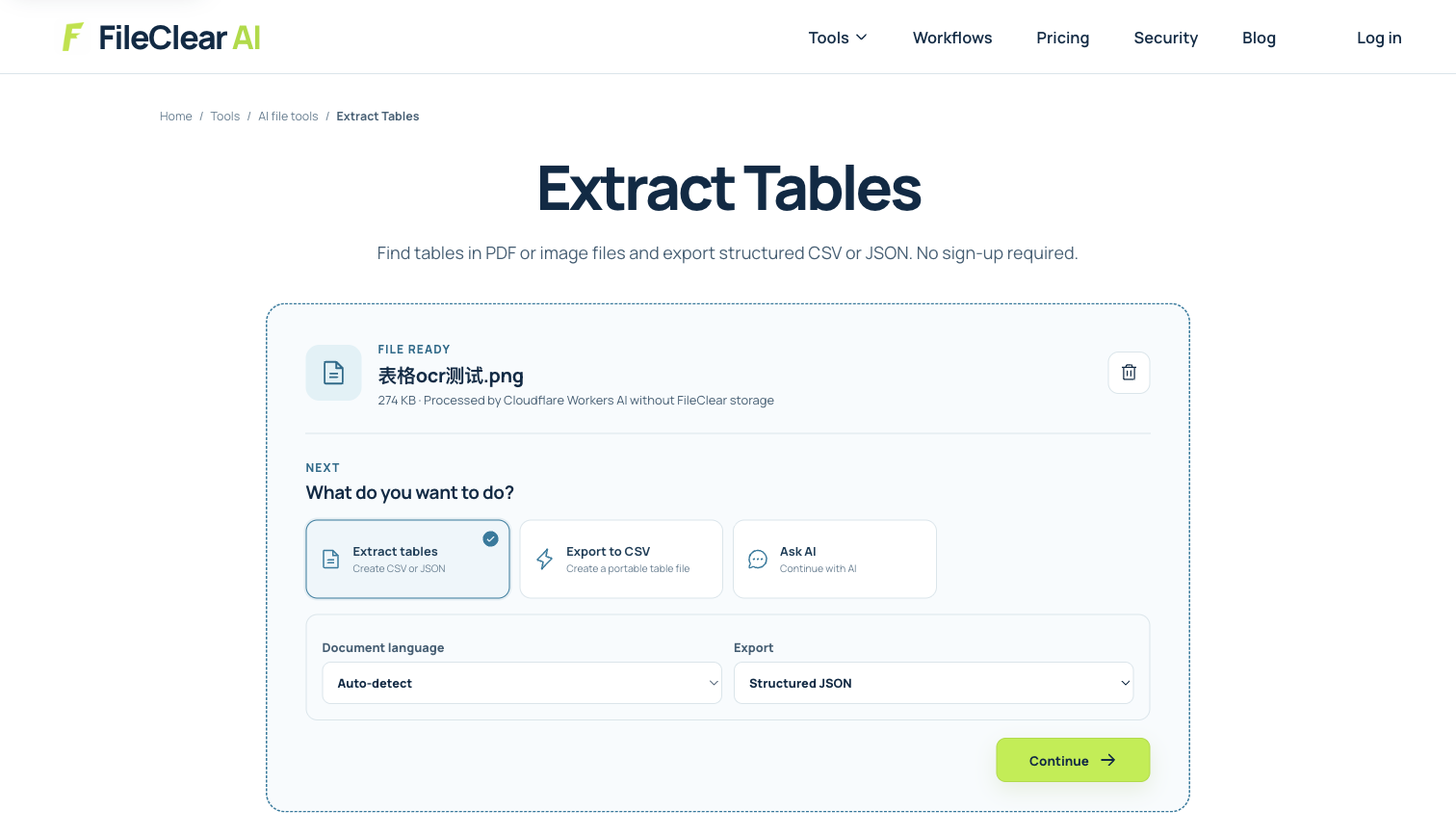
Open Extract Tables and process a working copy. The screenshot shows the real case at the settings stage and does not imply that every table design can be recovered automatically. Choose XLSX when you need workbook review, types, and multiple tables; choose CSV only for a single rectangular data set that does not require formatting or multiple sheets. Keep the source image or PDF beside the result. If one page contains materially different layouts, test them separately before committing a large batch so one detection strategy does not silently distort other page types.
Validate structure, values, and spreadsheet types separately
Compare the result in layers. Structure checks include sheet count, table count, headers, row count, column count, merged cells, and wrapped rows. Value checks sample the first and last row, every column, totals, blanks, negative values, decimals, dates, identifiers with leading zeros, and text containing punctuation. Association checks confirm that each value remains under the correct header and on the correct row. A workbook can look tidy while a shifted column makes every downstream calculation wrong.
Then inspect data types. Excel may interpret an identifier as a number and remove leading zeros, turn a code into a date, express a long account number in scientific notation, or treat a decimal separator according to locale. Formulas shown in the PDF usually return as displayed values, not original formulas. Recalculate totals independently and compare them with the printed source; do not use the extracted grand total to validate the same extracted rows. Record any manual repairs, especially split descriptions, multi-line headers, and cells whose source is ambiguous.
Choose a safer fallback when the grid is ambiguous
If a table is regular but one boundary is consistently wrong, adjust the crop or extraction region and retest. If OCR characters are wrong, improve the scan or language setup before tuning columns. If the table contains nested headers, irregular merged cells, handwritten notes, or several layouts, export smaller regions and combine them only after verification. For recurring documents, define a template with expected headers and validation rules rather than relying on unrestricted automatic inference each time.
Some PDFs are presentation artifacts rather than reliable data sources. Ask for the original spreadsheet, CSV, database export, or accessible report whenever possible; it preserves types and relationships that the PDF discarded. If the PDF is the only record, retain it as evidence and treat the spreadsheet as a reviewed derivative. The right success criterion is not visual similarity to the PDF. It is traceable data in which headers, row membership, characters, and types have been checked to the level required by the business decision.
Reconcile the spreadsheet before importing or calculating
Treat the exported workbook as unverified until it passes a reconciliation sheet. Record source page numbers, expected row count, first and last identifiers, printed subtotals, grand total, and any intentionally blank cells. Recalculate totals from the extracted rows with independent formulas and compare them with the PDF. Then sample cells from every column and from layout transitions such as wrapped descriptions, continuation pages, and repeated headers. A balanced grand total alone cannot detect two offset values that happen to cancel each other.
Protect identifiers from automatic type conversion before importing the data elsewhere. Postal codes, invoice numbers, dates, and long account references may need explicit text formatting, while monetary columns need a known locale and decimal rule. Save manual corrections in a review log instead of changing cells without evidence. When the reconciliation does not close, return to a smaller source region or request the original data. This prevents a visually tidy spreadsheet from becoming an untraceable source of operational or financial errors.
Continue this file task
Related guides
Frequently asked questions
- Why does PDF to Excel put several columns into one cell?
- The PDF may not store cell boundaries. If separators are only visual spacing or broken lines, the extractor can infer one text region instead of several logical columns.
- Why are table rows split into two Excel rows?
- Wrapped descriptions, variable line spacing, multi-line cells, or an extra baseline can look like a new record. Compare row keys and neighboring columns before joining lines.
- Can OCR recover a scanned table perfectly?
- OCR can recover characters, but table structure is a separate inference problem. Verify exact values, row and column associations, totals, and spreadsheet types against the scan.
- Should I use XLSX or CSV for a PDF table?
- Use XLSX when you need multiple sheets, table review, or richer types. Use CSV for one simple rectangular data set after verifying delimiter, encoding, and locale behavior.
Sources and further reading
- PDF connector in Power Query — Microsoft Learn
- How Camelot works — Camelot documentation
- Extract tables from PDFs — Adobe Acrobat Help