How to Extract Tables from PDFs into Excel or CSV
By Leomeo · Published 2026-07-23 · Updated 2026-08-29
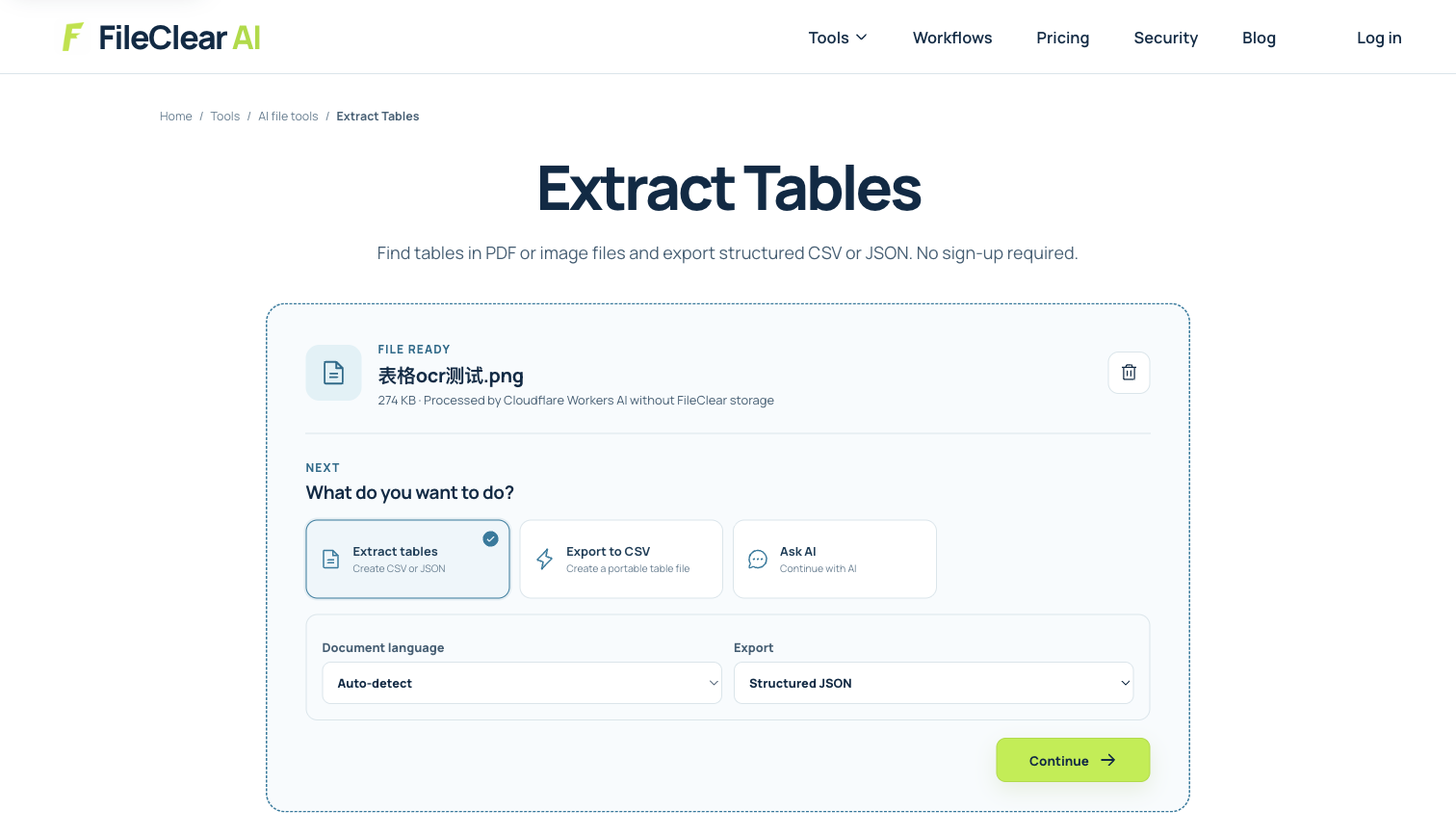
A step-by-step method for extracting PDF tables into Excel or CSV, cleaning rows and columns, and validating totals before analysis.
Decide whether the PDF contains real data or pictures
A table in a PDF can be constructed from text objects, drawn lines, positioned characters, or a single scanned image. Each form requires a different extraction strategy. Try selecting a cell. If you can select individual words, a parser may recover coordinates and infer rows and columns. If the whole page behaves like an image, OCR is required before table recognition. Some PDFs contain text but encode every character separately or use an unusual reading order, which can still confuse extraction. Inspect several pages because a report may combine digital tables with scanned appendices.
Clarify the desired output. CSV stores plain rows and columns and is ideal for import, analysis, and automation, but it cannot preserve multiple sheets, formulas, merged cells, formatting, or notes. Excel can retain separate tables, cell types, styles, and review annotations. If the table is only for reference, a visually preserved copy may be enough. If it will drive calculations, every value and unit needs validation. Define which fields matter, whether repeated headers should be removed, how blank cells should behave, and how to represent footnotes before extraction begins.
Prepare pages and choose table boundaries
Crop or rotate scanned pages and improve contrast without erasing light grid lines or decimal points. Select the document language for OCR, especially when headers contain accented characters. Restrict the job to pages that contain the needed tables. If the tool supports table zones, draw boundaries that exclude running headers, footers, page numbers, and nearby narrative text. A clear boundary reduces the chance that unrelated words become columns. For tables that continue across pages, decide whether to combine them and identify repeated header rows that should appear only once in the final dataset.
Look for structural hazards before conversion. Merged cells can represent grouped categories, but a flat dataset may need those labels filled down into each row. Wrapped descriptions may be mistaken for new records. A dash can mean zero, missing, not applicable, or a negative sign. Parentheses may indicate negative accounting values. Commas and periods change meaning across locales. Superscript footnote markers can become part of a number. Record these conventions in a short data dictionary. Extraction software cannot reliably infer business meaning when the visual design is ambiguous.
Normalize the spreadsheet without changing meaning
After extraction, preserve a raw sheet before cleaning. This provides an audit trail and lets you restart if a transformation is wrong. In a separate working sheet, remove repeated headers, join rows that were split by line wrapping, and fill group labels only where the source structure supports it. Normalize whitespace and obvious OCR artifacts, but do not silently rewrite uncertain values. Keep identifiers such as invoice numbers, postal codes, and account references as text so leading zeros survive. Convert dates and numbers only after confirming the source locale and separator conventions.
Separate values from units when analysis requires it. A cell containing 15 kg may become a numeric value column and a unit column, but retain the original text until the transformation is verified. Do not calculate totals over cells that still contain OCR uncertainty. Mark doubtful cells with a review flag or comment rather than guessing. If one PDF contains several unrelated tables, use separate worksheets or files with descriptive names. Add source page numbers so a reviewer can trace every row back to the document. Traceability is more valuable than a cosmetically perfect spreadsheet.
Validate rows, columns, and totals
Validation should test structure and content. Compare the number of extracted records with the source, accounting for multi-line rows and subtotals. Check that each column contains the expected type: dates in the date field, identifiers in the identifier field, and amounts in the amount field. Sort or filter for blanks, unexpected symbols, and extreme values. Search for common OCR confusions such as O and zero, l and one, missing decimal points, and commas recognized as periods. Sample rows from the beginning, middle, and end of every table, not only the clean first page.
Use arithmetic when the document provides it. Recalculate subtotals and grand totals, compare column sums, and test percentage relationships. A matching grand total is useful but does not prove every row is correct because two errors can cancel each other. Compare row-level totals for high-value or high-risk records. For financial data, reconcile against an independent control total when available. For scientific or operational data, confirm units and precision. If extraction feeds another system, validate a small batch through the entire import process before processing the full document set.
Create a repeatable and secure extraction process
For recurring reports, save the table boundary rules, expected columns, data types, cleanup steps, and validation checks. Use consistent filenames and include the source document identifier in the output. If templates change, treat the first new report as a fresh extraction rather than assuming old rules still work. Automated extraction should produce exception reports for missing columns, unusual row counts, failed totals, or low-confidence OCR. Human review can then focus on anomalies instead of rereading every ordinary cell. This combination is faster and safer than either blind automation or fully manual copying.
PDF tables often contain payroll, invoices, research results, or customer information, so evaluate the tool's security and retention policy before uploading. Remove temporary files when possible and control access to exported spreadsheets, which may be easier to copy and modify than the source PDF. The objective is not merely to make the table look like Excel. It is to produce structured, traceable data that preserves the source meaning and is safe to analyze. A successful workflow identifies the table type, records ambiguity, keeps raw output, validates key fields and totals, and retains a clear path back to each source page.
Continue this file task
Related guides
Frequently asked questions
- Why do PDF table columns move after extraction?
- PDFs often store positioned text rather than true rows and columns. Merged cells, borderless layouts, wrapped labels, scans, and repeated headers require structural inference and source review.
- Should I export a PDF table as XLSX or CSV?
- Use XLSX for multiple sheets, richer types, and review. Use CSV for one verified rectangular data set, after checking delimiter, encoding, formulas, dates, and decimal separators.
- Can I trust extracted totals without checking them?
- No. Recalculate totals and compare headers, signs, currencies, dates, row counts, and page references with the PDF before analysis or import.
Sources and further reading
- PDF connector in Power Query — Microsoft Learn
- How Camelot works — Camelot documentation
- Extract tables from PDFs — Adobe Acrobat Help