Why Flatten a PDF Before Printing or Sharing? When and How to Do It
By Sherry · Published 2026-08-23 · Updated 2026-08-23
Learn when PDF flattening fixes missing forms, annotations, layers, or print problems, which mode to choose, and what the process removes.
Case file: flattening a real one-page A4 PDF
We use a genuine PDF to demonstrate the complete visual mode, compare the source and derivative, and document what must be checked when interactive features and searchable text matter.
Open the real PDF flattening case
- The source is a 1-page A4 PDF.
- The original file is 3.95 MB.
- Complete visual flattening rebuilds the page as an image and therefore changes document capabilities.
Flattening means several different things in a PDF
People use flatten PDF to describe at least four operations: merging form-field appearances into page content, merging annotations or comments, consolidating visible optional-content layers, and flattening transparent artwork for older output systems. FileClear AI offers two clearly scoped choices. Form fields only converts existing field appearances into fixed page content while preserving the rest of the PDF structure where possible. Complete visual flattening renders every page and rebuilds it as an image-based PDF, removing interactivity but also removing selectable text, links, forms, annotations, and existing digital-signature functionality.
These modes solve different problems and should not be treated as a generic finishing switch. Flattening can help when filled values or markups disappear in a recipient’s viewer, when a portal rejects interactive forms, or when a printer cannot interpret complex page content. It is not the same as secure redaction, encryption, compression, PDF/A validation, or preventing all future editing. It also cannot prove the correctness of what was visible at the moment of processing. Start with the specific failure you need to solve and choose the least destructive mode.

Flatten when the finished appearance must travel reliably
Filled forms and annotations depend on appearance streams and viewer support. A value can be present in a field yet fail to print or display in a limited portal preview; a comment can be visible on screen but excluded by the printer’s Comments & Forms setting. Flattening the relevant field or annotation appearance into ordinary page content can make that approved visible state more consistent. It is useful only after the form is complete and reviewers no longer need to edit, calculate, validate, sign, or export those fields.
Layer and transparency flattening belong mainly to complex design, engineering, and print workflows. Adobe notes that transparent artwork may be flattened for output systems that do not support it and that layer flattening retains visible content while discarding hidden layer structure. First ask the printer or destination which PDF standard and features it supports; modern systems may not require flattening at all. Make a proof from the actual flattened derivative because overprints, spot colors, thin vectors, transparency seams, and text rasterization can change output even when the browser preview looks similar.
Run the real case and choose the least destructive mode
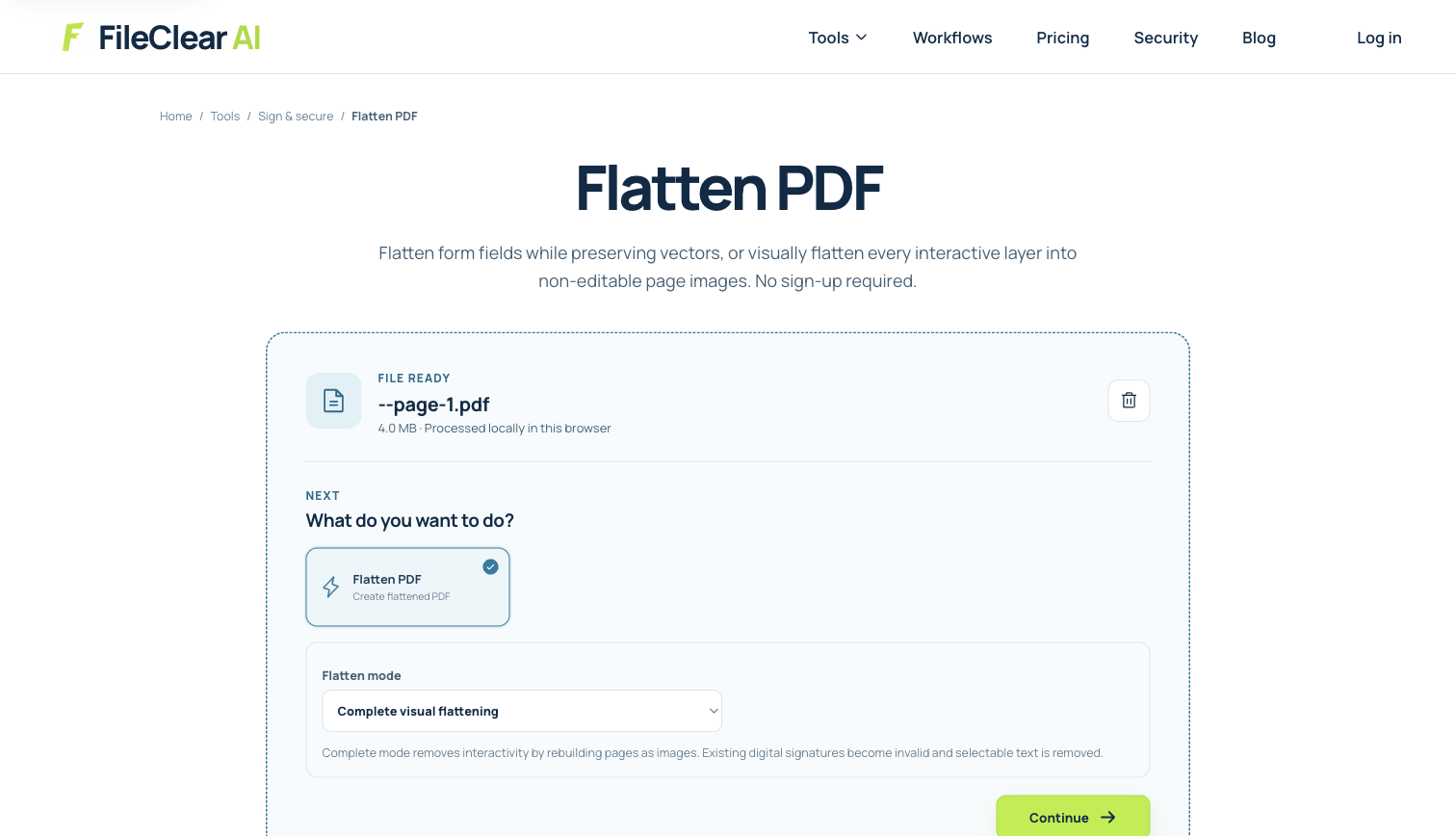
Download the genuine 1-page A4 case PDF and preserve it unchanged. Upload a working copy to Flatten PDF. If you are fixing completed AcroForm fields, choose Form fields only; a PDF with no fields may show little or no visible change, which is the honest outcome. For the demonstration shown in the settings image, choose Complete visual flattening, process the 3.95 MB source, preview the result, and download it under a derivative filename. Reopen that downloaded file rather than assuming the in-browser preview represents the saved bytes.
The case document is not presented as an interactive form, so the demonstration tests the complete page-image path and its consequences rather than inventing field data. Compare page dimensions, orientation, margins, text clarity, colors, and file size. Try selecting a sentence and testing a link: complete visual mode is expected to remove those capabilities. If that loss is unacceptable, return to the source and use a narrower operation. Flattening is not successful merely because the page still looks similar; the result must retain every capability the destination actually needs.
Know what flattening cannot guarantee
Flattening is not secure redaction. A form-only or annotation-only process can preserve underlying page text, and even a visual rebuild should not replace an approved redaction and sanitization procedure when confidential data is involved. Flattening also does not make a PDF impossible to edit; pixels can be altered, pages can be replaced, and new annotations can be added unless other controls apply. It does not authenticate the author or recipient, and it does not create a certificate-based digital signature. In fact, changing a signed PDF normally invalidates existing signatures or produces an unsigned derivative.
Complete visual flattening can reduce accessibility by removing the text layer, reading order, headings, links, form labels, and tags used by assistive technology. It may enlarge the file or make small text less clear, depending on render resolution and compression. Forms-only flattening removes the ability to edit or export the field data. Layer flattening discards hidden layer content. Transparency flattening can split artwork into raster and vector regions. Preserve the original and document exactly which mode was used so the derivative is not mistaken for the editable, accessible, or signed record.
Verify the final PDF in the destination workflow
Open the downloaded result in a second viewer and inspect every page with filled fields, comments, stamps, signatures, layers, transparency, unusual dimensions, or mixed orientation. Print one representative page with the same device, driver, and Comments & Forms settings that will be used for the real job. For sharing, upload a test to the actual portal and download it again if the system reprocesses PDFs. Compare the returned bytes or rendered pages with your approved derivative rather than assuming the portal preserved them unchanged.
Confirm page count, page size, margins, colors, image resolution, text clarity, form appearances, and the intended absence of interactivity. Search or select sample text when using forms-only mode; verify that it is no longer available when complete visual mode was deliberately chosen. Check links and accessibility if they must survive, and validate any signature status. The safest workflow keeps the source, chooses the narrowest flattening mode that solves a reproduced problem, tests the real destination, and shares the derivative only after its visible and functional tradeoffs are accepted.
Continue this file task
Related guides
Frequently asked questions
- Do I need to flatten every PDF before sharing it?
- No. Flatten only when a reproduced compatibility, printing, form, annotation, layer, or transparency problem justifies the loss of interactivity. Ordinary searchable PDFs often travel better without destructive flattening.
- What is the difference between forms-only and complete visual flattening?
- Forms-only turns field appearances into page content while preserving more of the PDF. Complete visual flattening rebuilds pages as images and removes selectable text, links, forms, annotations, and existing signature functionality.
- Will flattening stop someone from editing a PDF?
- It removes specified interactive structures, but it does not make the visual content impossible to alter or authenticate the file. Use permissions, controlled sharing, and digital signatures for their intended purposes.
- Does flattening permanently redact hidden information?
- No. Flattening is not a substitute for redaction and sanitization. Use a redaction workflow that removes selected content, inspect hidden information separately, and verify the released copy.
Sources and further reading
- Print PDF forms — Adobe Acrobat Help
- Transparency flattening — Adobe Acrobat Help
- Printing complex PDF documents — Adobe Acrobat Help