How to Password-Protect a PDF Before Sending It by Email
By Leomeo · Published 2026-08-23 · Updated 2026-08-23
Encrypt a PDF for email with a strong password, test the protected copy, send the password separately, and understand what protection cannot prevent.
Real-file case: encrypt and reopen a 3.95 MB A4 PDF
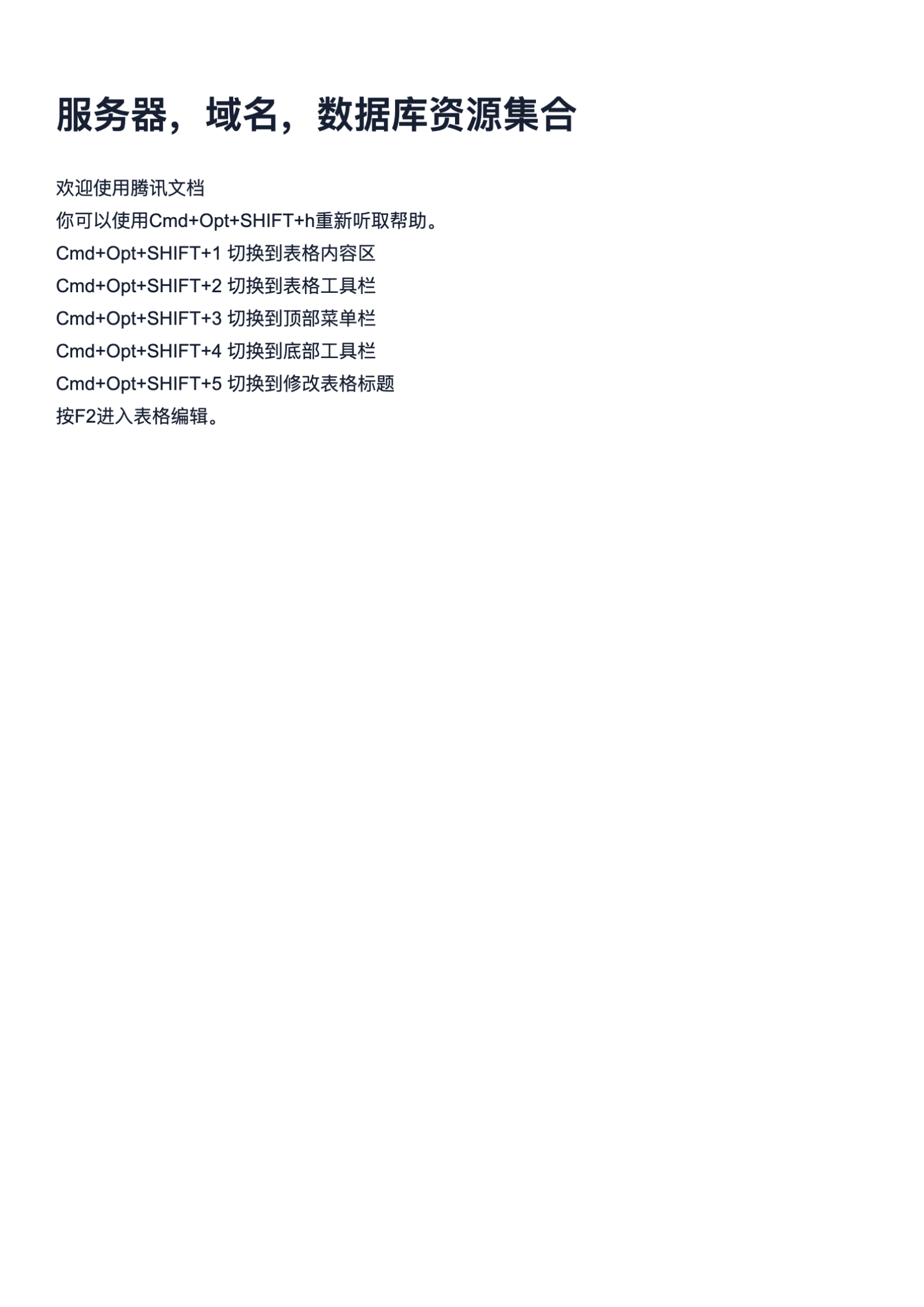
The case uses a real one-page resource PDF that readers can download and inspect. Protect a working copy, close every open preview, confirm the encrypted file refuses access without the password, then reopen it with the correct password and compare the visible page with the source.
- Source document: one page of real PDF content suitable for a repeatable protection test.
- Page size: A4 (595.28 × 841.89 points).
- Original file size: 3.95 MB.
- Acceptance test: the protected copy must reject a missing or wrong password and open with the correct one.
1. Decide whether an email attachment is an acceptable channel
Password protection reduces the risk of someone opening an intercepted or misdirected attachment without the password. It does not make ordinary email a controlled document portal, prevent the intended recipient from forwarding or copying an opened file, revoke access later, or prove who opened it. Follow the organization’s rules for financial, medical, legal, identity, employment, or customer data. When policy requires a managed sharing service, recipient authentication, expiration, audit logs, or data residency controls, use that system instead of an attachment.
Minimize the document before protecting it. Confirm the recipient needs every page, remove accidental attachments or comments, apply secure redaction where authorized, and review metadata. Do not crop or cover sensitive text and assume it is gone. Send the smallest necessary derivative and keep the authoritative original separately. Verify the recipient address independently; encryption does not help if both the attachment and password go to the same unintended mailbox. Write down who should receive the file and how the password will be delivered.
2. Create a strong, unique document-open password
Use a long, unique passphrase that is not reused for an email account, company login, or another document. Length and unpredictability matter more than cosmetic substitutions such as changing an e to 3. A password manager can generate and store a random value. Avoid names, birthdays, invoice numbers, recipient identifiers, document titles, or patterns a person could infer from the email. Agree on a secure recovery process before sending a high-value document; if everyone loses the password, properly encrypted content may be unrecoverable.
A document-open password controls whether the PDF can be decrypted and viewed. A separate permissions password can request limits on printing, copying, or editing, but those permissions depend on viewer behavior and should not be treated as digital rights management. For confidentiality, the open password is the essential control. Choose compatibility and encryption settings the recipient’s approved software supports; FileClear AI creates an AES-256-protected PDF locally. Do not paste the real password into filenames, notes, screenshots, or the email subject.
3. Protect a working copy and choose permissions deliberately
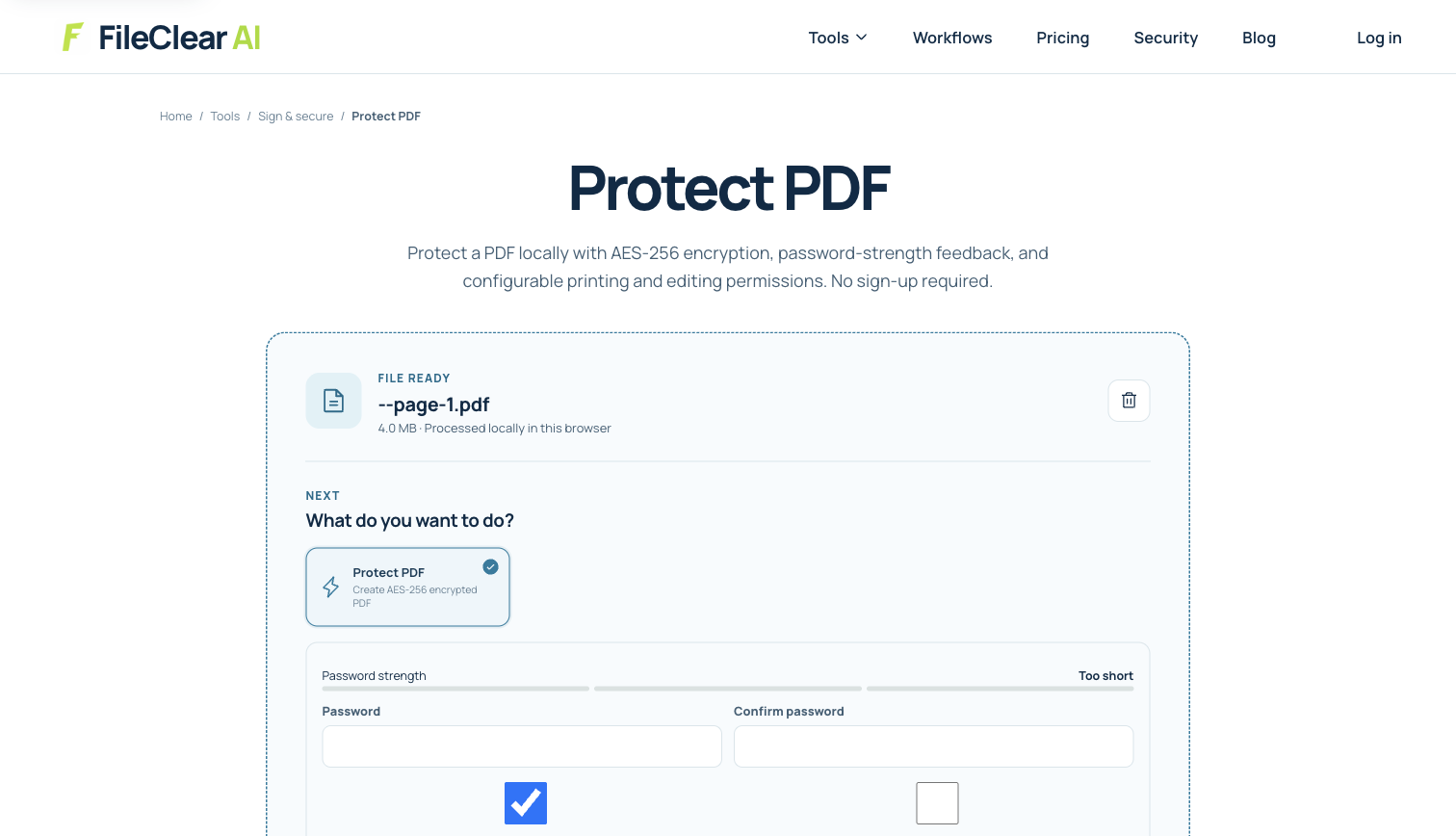
Open Protect PDF and select a copy of the approved source. Enter and confirm the document-open password, review the strength feedback, and set printing or editing permissions only when you have a clear business rule. Process the file and save the result with a name such as resource-page-protected.pdf. Keep the unencrypted original outside the outgoing email folder. Password protection changes the PDF and can affect existing digital signatures, so preserve signed originals and verify signature status when signatures matter.
The screenshot shows the real protection workflow used with the downloadable A4 case. The source is one page and 3.95 MB, which makes visual comparison straightforward without pretending that encryption reduces size. Protection usually adds a small amount of structure; it is not compression. If an attachment exceeds the recipient’s limit, compress and approve the sharing copy first, then encrypt the final version. Do not repeatedly decrypt, edit, and re-encrypt the only copy of an important record.
4. Test the encrypted PDF as the recipient will receive it
Close the original and every preview of the protected file so a cached, already-decrypted view cannot fool the test. Open the protected copy in one current PDF viewer and confirm that it asks for a password. Try a deliberately wrong value and confirm access is denied, then enter the correct password. Compare page count, orientation, text, images, links, forms, and important annotations with the approved source. If permissions were configured, test them in the recipient’s supported viewer while remembering that enforcement can vary.
Open the file in a second viewer when compatibility matters. Confirm the filename and actual file size after download, not only in the browser. For the real case, the expected result is one intact A4 page that cannot be viewed without the open password. If the file opens silently, stop: you may be testing the unprotected source, an application may have remembered a password, or encryption was not applied. Rename the files clearly and repeat the test in a fresh viewer session.
5. Send the PDF and password through separate channels
Attach only the verified protected copy. Recheck the recipients, remove unintended autocomplete suggestions, and keep the message free of the password. Deliver the password through a separately authenticated channel, such as a phone call, approved messaging system, or established secure process. Sending a protected PDF and its password in the same email provides little protection against mailbox access. When possible, confirm the recipient’s identity before revealing the password and tell them which application to use if their default preview cannot open the encryption type.
Ask the recipient to confirm successful access without replying with the password. Follow retention rules for the sent message, local derivatives, and password record. If the wrong person received the email, assume the attachment can remain in that mailbox; changing your local password does not re-encrypt the sent copy. Escalate according to policy. A defensible email workflow minimizes content, verifies the address, encrypts the final copy with a strong unique passphrase, tests it in a fresh viewer, and separates the attachment from the password delivery channel.
Continue this file task
Related guides
Frequently asked questions
- Should I send the PDF password in the same email?
- No. Send the verified protected attachment by email and deliver the password through a separate, authenticated channel so access to one message does not reveal both items.
- Is a permissions password the same as an open password?
- No. An open password encrypts access to the document. Permission settings request limits on printing, copying, or editing and can depend on the PDF viewer, so they are not a substitute for encryption.
- Does password-protecting a PDF reduce its file size?
- No. Encryption is a security operation, not compression. If size is a problem, compress and verify the final sharing copy before adding the password.
- Can I recover a forgotten PDF password?
- Do not assume so. Strong encryption is designed to resist access without the password. Store the passphrase in an approved password manager or recovery process before distributing the file.
Sources and further reading
- Encrypt PDFs with passwords — Adobe Acrobat Help
- Use strong passwords — Cybersecurity and Infrastructure Security Agency
- Send attachments with your Gmail message — Google Gmail Help