Why Is Redacted PDF Text Still Copyable? How to Remove It Permanently
By Sherry · Published 2026-08-23 · Updated 2026-08-23
Learn why black boxes can leave PDF text searchable and copyable, then use real redaction, sanitization, and verification to remove it safely.
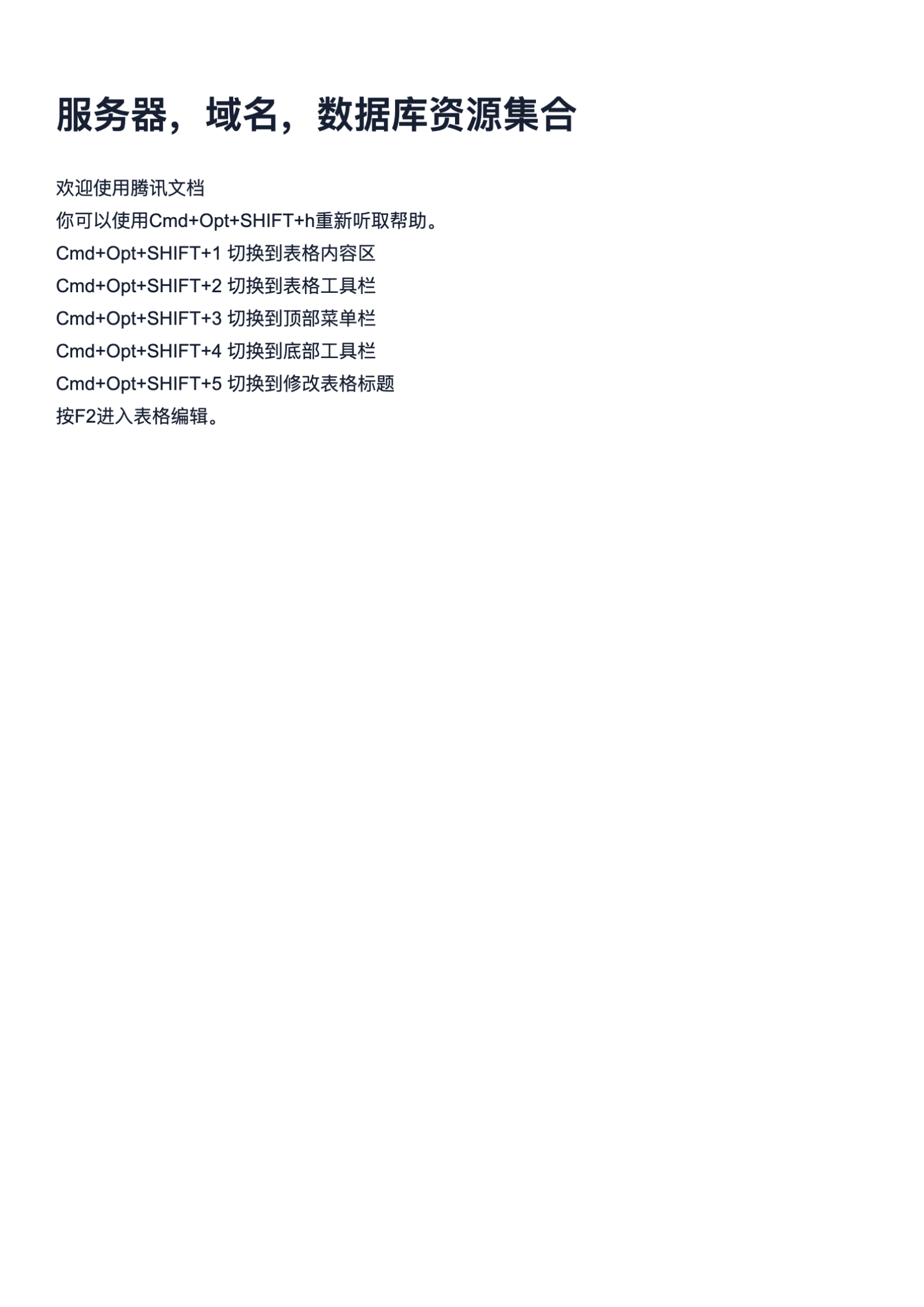
Case file: a real A4 PDF tested for permanent redaction
We use a genuine one-page web-resource PDF to demonstrate the difference between hiding words and removing matching PDF content, while preserving the unchanged source for comparison.
- The source is a 1-page A4 PDF.
- The original file is 3.95 MB.
- The workflow is performed on a copy so the original evidence remains unchanged.
A black box can hide text without removing it
If you can select, search, or copy words that appear to be blacked out, the PDF was probably covered rather than redacted. A rectangle, highlight, drawing, comment, or filled form field can sit above the original page content while the underlying text object remains in the file. The page looks safe at normal zoom, but copy and paste, text extraction, search indexing, accessibility software, layer controls, or an annotation editor may still expose the words. Changing the text color to black or cropping the visible page is not secure removal either.
Permanent redaction is a content operation, not a paint operation. A proper redaction workflow identifies the text or graphics, applies the redaction, saves a new file, and removes the selected material from the released copy. The visible redaction mark is the replacement appearance after removal. Adobe separately describes sanitization for metadata, comments, hidden layers, scripts, embedded content, and other information that is not part of the visible selection. Secure release may require both steps.
Apply redaction to the real PDF case file
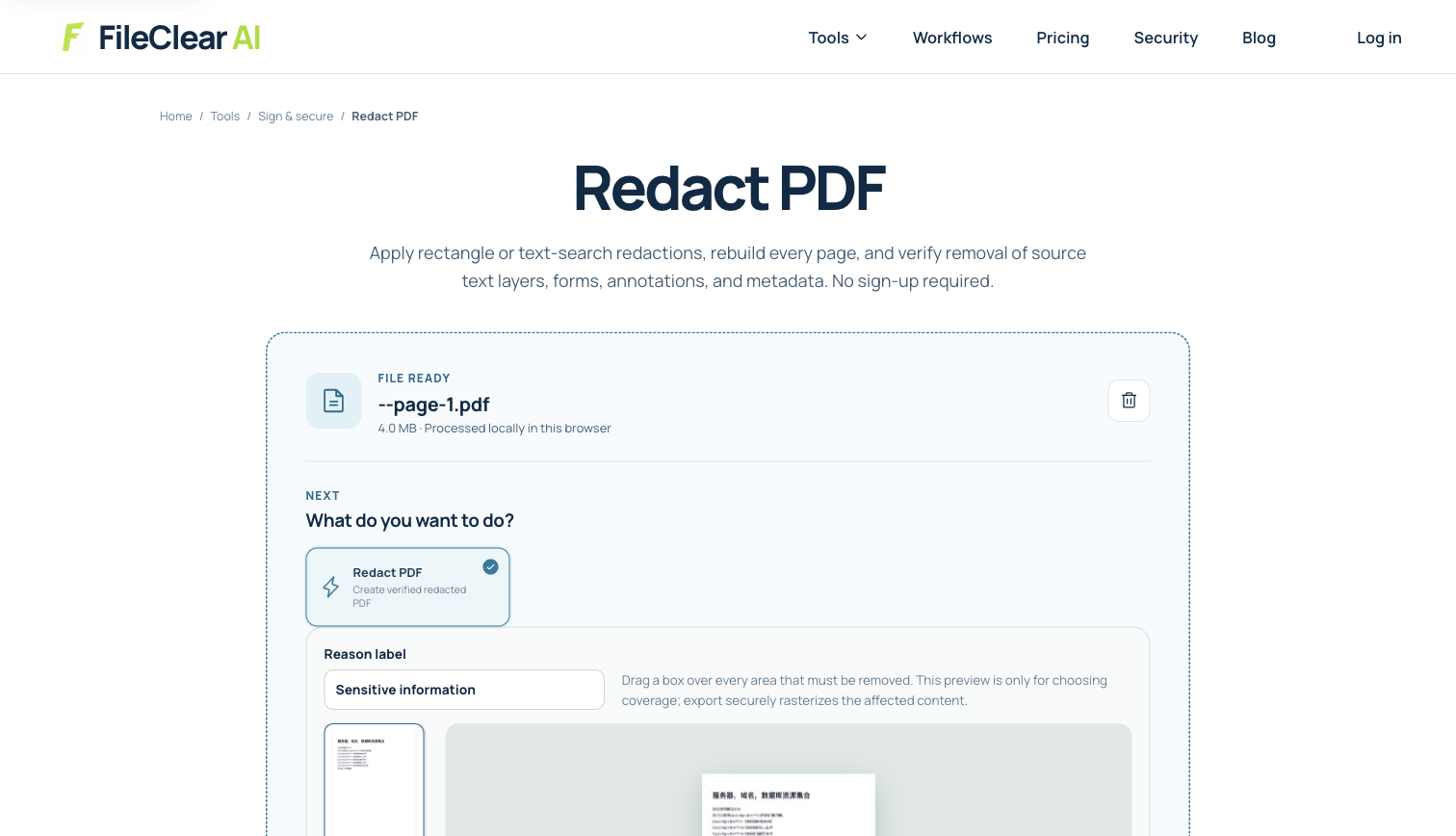
Download the case file and keep it unchanged. In FileClear AI, open Redact PDF, upload the working copy, and enter a distinctive phrase that is actually present in the document. Check spelling, punctuation, line breaks, and capitalization before continuing. Search-based redaction works on searchable PDF text; it cannot find words that exist only as pixels in a scan. Review every match rather than assuming that the same word always represents sensitive information, then apply the operation and save the result under a new filename.
The case PDF is a one-page A4 document and is 3.95 MB, so page boundaries are simple and the before-and-after comparison is easy to audit. The screenshot shows the real settings screen used for the demonstration. A successful status message is only the beginning of verification: open the produced PDF in a separate viewer and compare the surrounding sentence with the source. If no matches are reported, stop and determine whether the phrase differs, the page is scanned, or the text encoding prevents reliable search. Never substitute a decorative box just to make the page look finished.
Verify that the words are gone, not merely invisible
Reopen the downloaded derivative rather than inspecting only the browser preview. Search for the full sensitive phrase and several distinctive fragments. Drag across the redacted area, copy the surrounding paragraph, and paste it into a plain-text editor. Run a PDF-to-text extraction on an authorized test copy and check that the removed value is absent. Open the PDF in a second viewer, inspect comments and layers, and zoom in around the redaction boundary. These checks target different failure modes and are more reliable together than a visual glance.
Also check what remains. Redaction should not silently remove unrelated text, totals, labels, or context needed by the recipient. For repeated values, compare the expected match count with the number applied. For a scan, remember that hiding image pixels does not automatically remove a separate OCR text layer, and removing the OCR text does not alter the visible pixels. Both representations must be addressed. If the consequences of disclosure are high, use a documented two-person review and keep a release checklist tied to the original file and redacted derivative.
Sanitize hidden information before sharing
Visible redaction has a defined scope. The PDF may still include author names, revision metadata, comments, attachments, form values, hidden layers, embedded files, scripts, or previous incremental revisions. Inspect document properties and use a sanitization or metadata-removal workflow appropriate to the sensitivity of the document. Do not assume that flattening, printing to PDF, password protection, or changing permissions removes every hidden item. Each operation addresses a different risk and can also discard useful accessibility, navigation, form, or signature information.
Release only the redacted derivative and retain the unredacted original in an access-controlled location according to policy. Do not overwrite the record you may need for audit or later review. The National Archives recommends performing redaction on a copy and checking the released representation carefully. For especially sensitive material, follow your organization’s approved redaction procedure and legal requirements rather than relying on one browser tool. The safe claim is narrow: the verified visible content was removed from the released copy, and the hidden-information checks you actually performed were completed.
Record exactly what was removed and who verified it
A repeatable release record makes redaction safer than relying on memory. Note the source filename, working-copy filename, redaction terms or page regions, expected match count, output filename, tool version, and review date. Do not copy the sensitive value into a broadly accessible ticket or log; use an approved case reference when the value itself must remain restricted. Record whether the reviewer tested search, selection, copy and paste, text extraction, comments, attachments, metadata, and visible page boundaries. This creates evidence of the checks that were actually performed without claiming that an untested risk was eliminated.
Use a second reviewer when disclosure could create legal, financial, employment, health, or personal-safety harm. The second person should inspect the released derivative independently, not merely watch the first reviewer repeat the same steps. Give the reviewer the expected redaction locations and enough context to recognize accidental over-redaction, but keep access limited to authorized people. After approval, distribute only the verified derivative, preserve the protected source under the applicable retention policy, and avoid sending both files in the same email or shared folder. Clear naming and separate storage reduce the chance that someone later publishes the unredacted original by mistake.
Continue this file task
Related guides
Frequently asked questions
- Why can I copy text from under a black box in a PDF?
- The box is probably an overlay, annotation, shape, or form appearance placed above the original text. Because the underlying text object was not removed, search, copy and paste, extraction, or assistive software can still reach it.
- Does flattening a PDF make a fake redaction secure?
- Not reliably. Some flattening methods merge the visible box and page while retaining searchable text; complete rasterization may remove text but also sacrifices quality, accessibility, links, forms, and signatures. Use a real redaction operation and verify the output.
- Can search-based redaction find words inside a scanned PDF?
- Only when a usable OCR text layer exists. Image-only words are pixels, so the scan must be reviewed visually or processed with OCR, and both the image and any OCR layer must be checked in the released copy.
- Is removing visible text enough to publish a PDF safely?
- Not always. Metadata, comments, attachments, form values, hidden layers, scripts, and other non-visible content may remain. Use an appropriate sanitization checklist and verify the exact risks relevant to the document.
Sources and further reading
- Redact and sanitize PDFs in Acrobat Pro — Adobe Acrobat Help
- Sanitize PDFs and remove hidden content — Adobe Acrobat Help
- Redaction Toolkit — The National Archives