How to Crop White Margins from a PDF Without Cutting Off Content
By Sherry · Published 2026-08-23 · Updated 2026-08-23
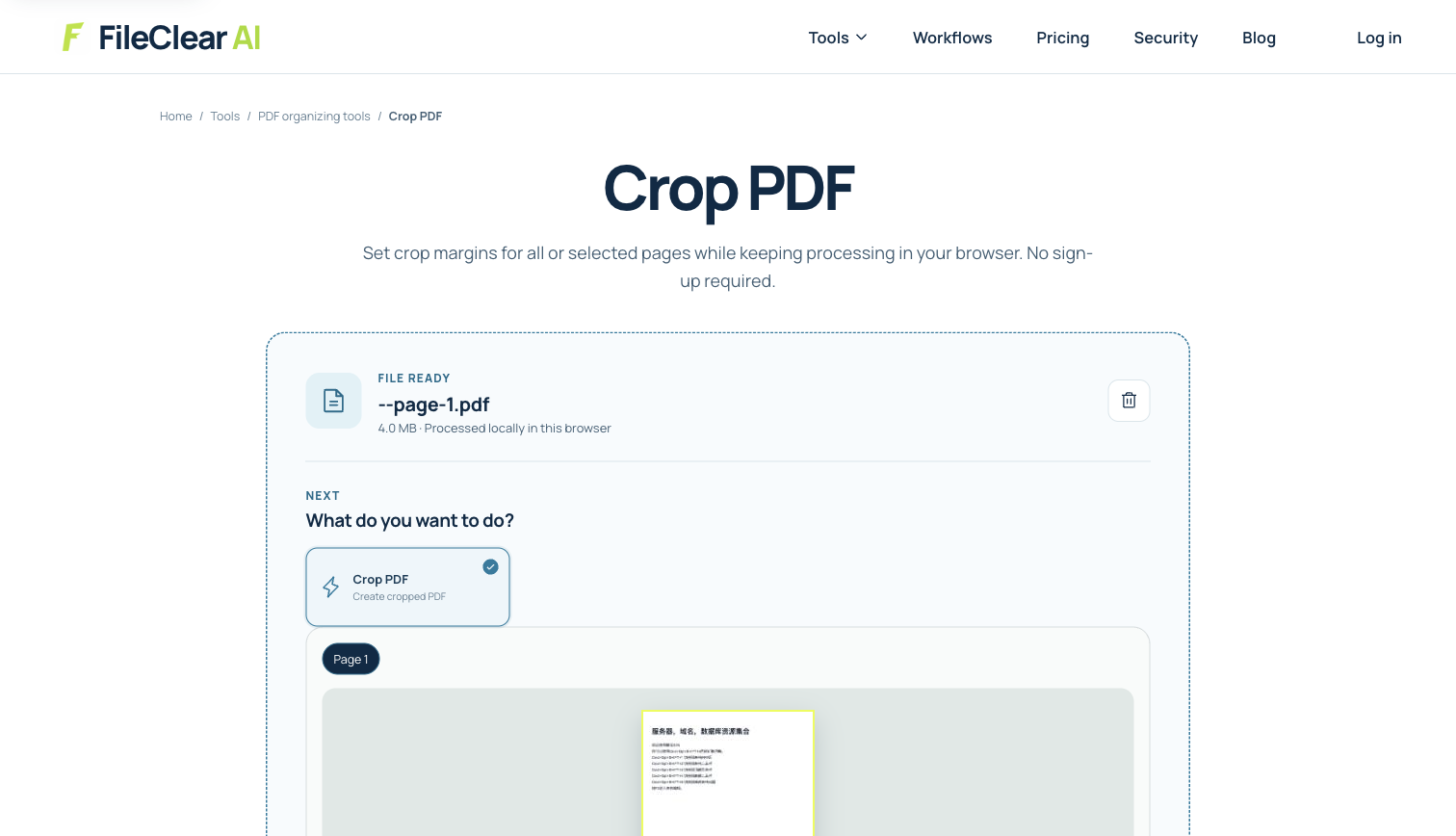
Crop PDF white margins safely with conservative measurements, page-range checks, edge inspection, and a reversible workflow that protects real content.
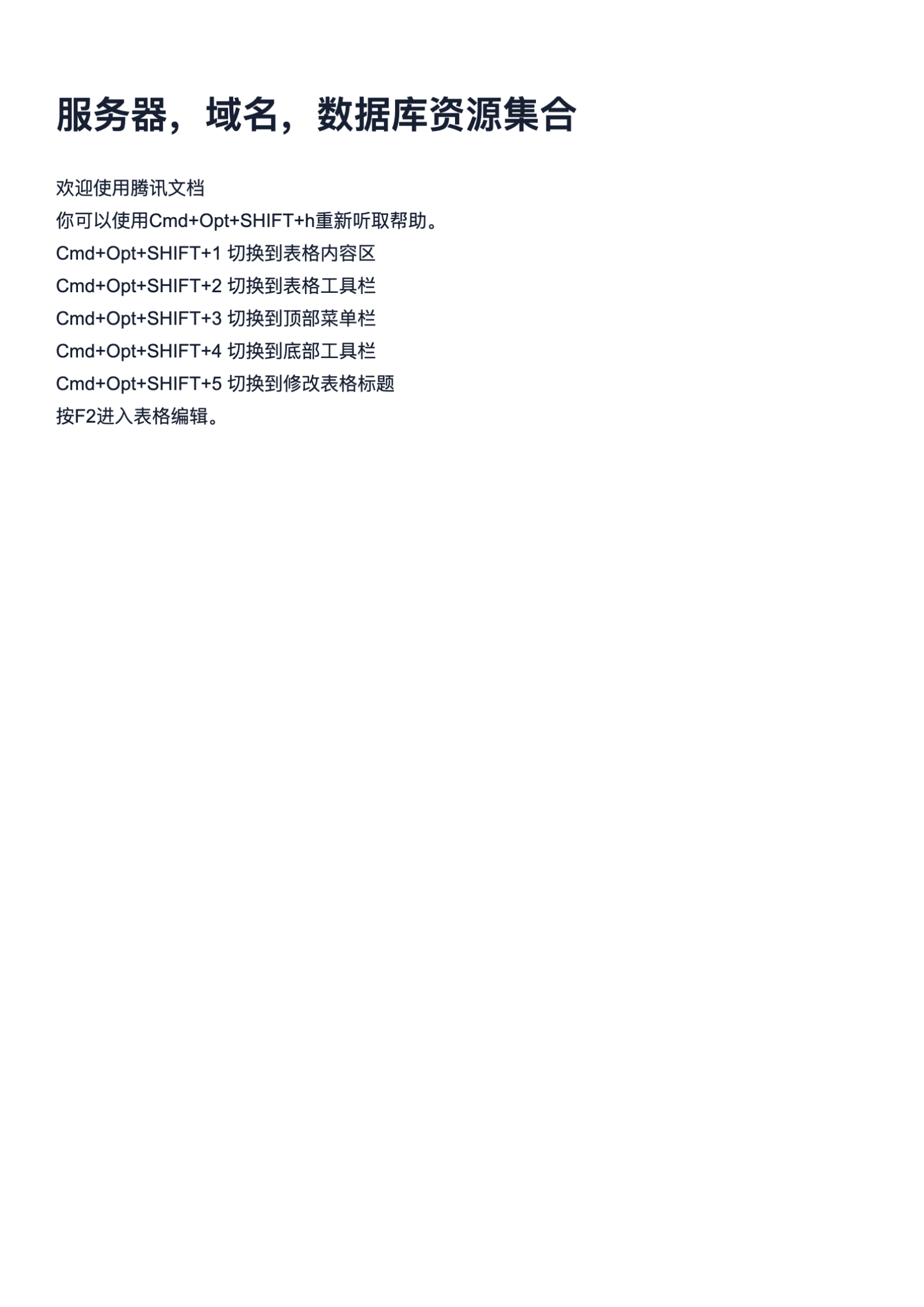
Real-file case: trim a one-page A4 resource PDF conservatively
The case uses a real, downloadable A4 PDF rather than a drawn mock document. Its single page makes the edge review fast: inspect the header, footer, and both side boundaries, apply a conservative crop to a copy, and compare the result with the original at high zoom.
- Source document: one real PDF page with text and graphical content.
- Page size: A4 (595.28 × 841.89 points).
- Original file size: 3.95 MB.
- Safety check: compare all four edges at 200% zoom after cropping.
1. Confirm that cropping is the right operation
Cropping changes the visible or printable page area. It is useful for trimming scanner borders, excess presentation canvas, or uneven white margins that make a page look too small on screen. It is not the same as resizing a page to A4 or Letter, reducing file size, deleting objects, or securely removing sensitive content. Adobe explicitly notes that cropping can hide content without discarding the underlying information, so never use a crop as redaction. If the problem is a large attachment, use compression after the visual layout is correct.
Before changing anything, duplicate the PDF and inspect it in thumbnail view. Look for mixed portrait and landscape pages, foldouts, bleed or printer marks, handwritten notes near an edge, footnotes, page numbers, signatures, stamps, and comments outside the main text column. A margin that is empty on page 1 may contain a footer on page 2. Record which pages share the same layout and which need a different crop. For a scanned document, distinguish true page white from the gray scanner background and shadows along a bound edge.
2. Measure white space and choose conservative margins
Think in four independent values: top, right, bottom, and left. Start smaller than the visible white space instead of cropping exactly to the nearest letter. The extra buffer protects antialiased text, accents, handwritten marks, printer variance, and pages whose content shifts slightly. If the tool accepts points, remember that 72 points equal one inch; if it accepts another unit, confirm the unit before entering a number. Do not copy a value from a screenshot without checking the page dimensions of your own document.
Use the preview to inspect the crop rectangle, then zoom into the tightest edge. Check descenders, punctuation, table rules, page numbers, and signature strokes rather than only paragraph blocks. For a bound scan, left and right margins may alternate between odd and even pages. For professional print files, CropBox, TrimBox, BleedBox, ArtBox, and MediaBox have different purposes; changing the visible CropBox is not a substitute for a prepress decision about trim and bleed. Ask the printer before changing production files.
3. Apply the crop to the correct page range
Open Crop PDF, select the source copy, and set small margins for the appropriate page range. If every page shares one layout, applying the same crop can create a clean, consistent result. If layouts differ, process groups separately or use the narrowest safe values for the whole document. Never assume that All pages is correct merely because the first thumbnail looks good. Covers, appendices, landscape tables, scanned envelopes, and pages with side notes often require their full original bounds.
In the real case, the source contains one A4 page, so the page-range decision is unambiguous. Enter a conservative margin, preview each edge, and create the cropped copy. The settings screenshot shows the actual tool state used for this workflow. The case is intentionally simple: it lets you learn the relationship between the four margin controls and the visible page before attempting a mixed-layout report where a mistake can affect dozens of pages.
4. Compare the cropped copy with the original
Open the original and cropped PDFs side by side. Check the first page, last page, and every distinct layout at 100% and 200% zoom. Follow the perimeter clockwise: top header, right edge, bottom footer, and left edge. Confirm that page numbers, crop marks you intended to keep, punctuation, form borders, stamps, and handwritten content remain complete. Search and copy text near the edges when it should remain selectable. Then print or use print preview if the cropped file is meant for paper.
Compare page count, orientation, and displayed page dimensions. Cropping may change what a viewer displays without removing hidden objects outside the CropBox, and resetting page boxes in a capable editor may reveal them again. That behavior is valuable when correcting an accidental crop, but it is a privacy risk if you expected excluded material to be destroyed. If content must be permanently removed, use an authorized redaction or sanitization workflow and verify the result independently.
5. Handle mixed pages, printing, and file-size expectations
A uniform crop is attractive, but consistency should not override complete content. Separate portrait and landscape ranges, odd and even scanned pages, or special foldouts when they need different margins. Keep enough printable margin for the destination printer; some printers cannot mark to the physical edge. If a page will be bound, consider the gutter as part of the usable layout. For an archival or legal record, preserve the uncropped original and make the cropped PDF a clearly named viewing derivative.
Do not promise a meaningful size reduction from cropping. Hidden page content can remain in the file, and large images or embedded fonts still dominate storage. If the approved cropped copy is too large, compress it as a separate step and compare image clarity, searchable text, and page geometry afterward. The safest workflow is conservative and reversible: identify true white space, group pages by layout, apply measured margins to a copy, inspect every edge, and use redaction or compression only for the separate problems they are designed to solve.
Continue this file task
Related guides
Frequently asked questions
- Does cropping a PDF permanently delete content outside the margins?
- Not necessarily. A PDF crop commonly changes the visible CropBox while underlying objects remain in the file. Do not use cropping as a privacy or redaction method.
- Why did cropping cut off text on only some pages?
- Those pages probably use different layouts, rotations, or content positions. Group pages by layout, use a smaller crop, and inspect every distinct page type before applying one setting to all pages.
- Will removing white margins make my PDF much smaller?
- Usually not. Cropping can hide page areas without discarding stored content. Compress images and other resources separately when file size is the actual problem.
- What is the difference between cropping and resizing a PDF?
- Cropping changes the visible page boundary. Resizing changes the target page dimensions and may scale or reposition content to fit A4, Letter, or another size.
Sources and further reading
- Crop pages in PDFs using Acrobat — Adobe Acrobat Help
- Crop or rotate a PDF in Preview on Mac — Apple Support
- PDF Reference 1.5: page boundaries — Adobe