How to Remove PDF Metadata Before Sharing a Document
By Leomeo · Published 2026-08-23 · Updated 2026-08-23
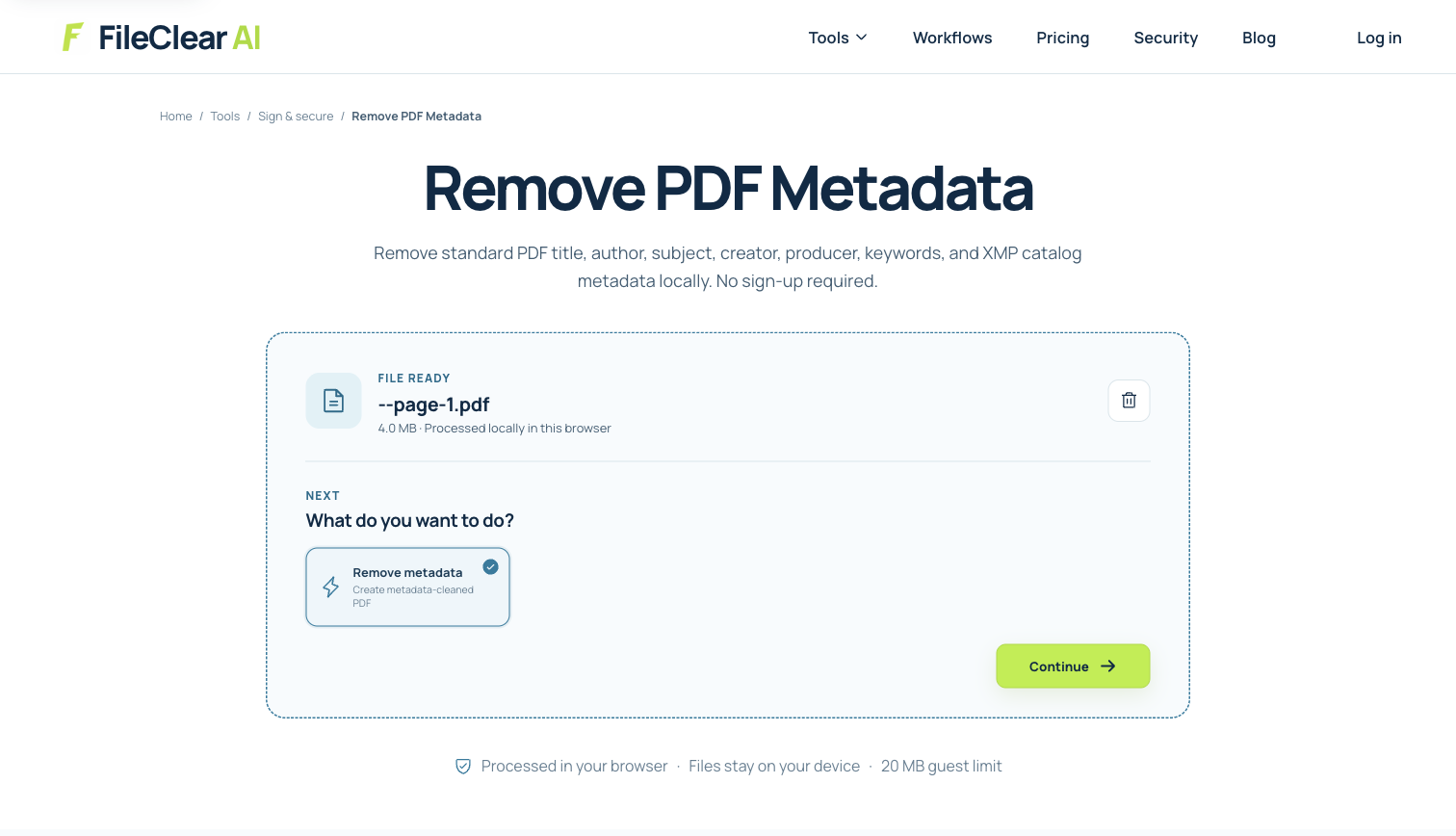
Inspect and remove PDF metadata from a sharing copy, verify what changed, and understand why metadata removal is not secure redaction.
Real-file case: inspect a one-page A4 PDF before release
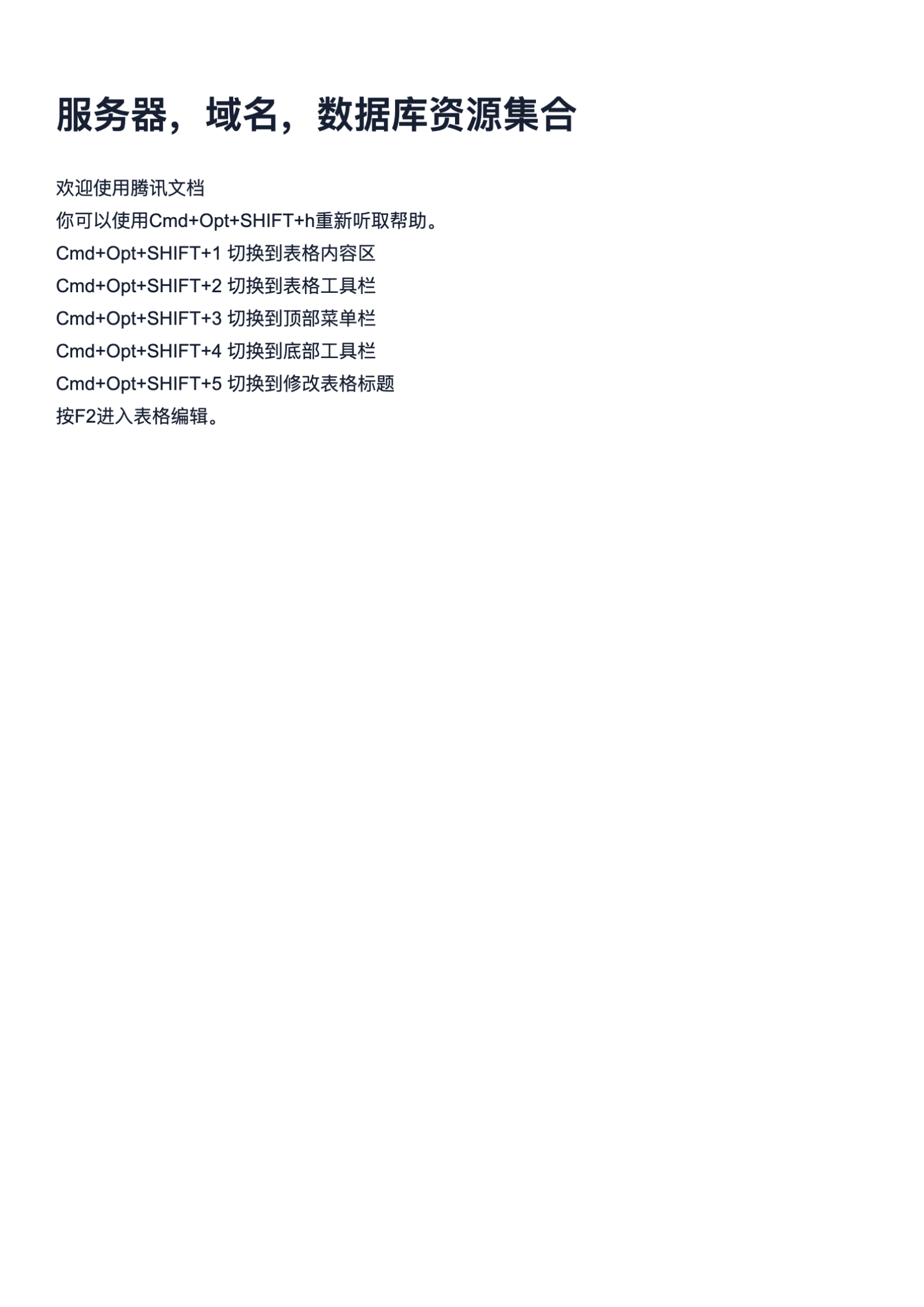
The case uses a real one-page PDF so the visible page and document-properties workflow can be reviewed side by side. We do not assume which optional metadata fields are present, claim a particular byte reduction, or treat the operation as a complete privacy guarantee.
- Source document: one real A4 PDF page.
- Page size: 595.28 × 841.89 points.
- Original file size: 4,145,961 bytes.
- Scope: inspect properties, create a cleaned working copy, and verify it independently; visible-content redaction remains a separate task.
1. Separate metadata from visible page content
PDF metadata can include a title, author, subject, keywords, creator application, producer, and creation or modification dates. Some values may be stored in the document information dictionary, an XMP packet, or both, and a viewer may show one representation while another inspection tool reports more. Filenames and filesystem timestamps are separate again. Begin by defining what must not leave your organization, then inspect the PDF rather than assuming every field exists or that a blank properties panel proves the file contains no descriptive data.
Metadata removal addresses document properties; it is not secure redaction. Names, account numbers, comments, attachments, filled form values, hidden layers, scripts, bookmarks, visible headers, and text outside a crop boundary may remain even after standard metadata fields are cleared. Conversely, some metadata supports accessibility, archiving, rights management, discovery, or a regulated record. Make a release copy and retain the authoritative original according to policy, because automatically stripping every field can remove useful provenance along with unwanted details.
2. Inspect properties and hidden-information categories
Open document properties in a capable PDF viewer and record the fields it exposes before editing. Check title, author, subject, keywords, dates, creator, producer, security, page size, fonts, and custom properties where available. Then inspect comments, form fields, attachments, layers, bookmarks, links, actions, scripts, and signature status through their own panels. The list matters because no single metadata screen represents every potentially sensitive structure in a PDF, and the correct release process depends on the document's actual features.
Use a second trusted inspector when the disclosure risk is meaningful. Different applications can interpret XMP and the older information dictionary differently, and incremental updates may preserve structures that are not obvious in the current view. Do not publish raw metadata dumps when they can contain the very information you are trying to protect. Record only the categories checked and the decision made. If the PDF is digitally signed, preserve the signed source and confirm signature status after any modification because changing document structures can affect validation.
3. Remove metadata from a working copy of the real PDF
Download the real one-page A4 case file and preserve it unchanged. Upload a working copy to Remove PDF Metadata, review the available controls, and create a separately named sharing derivative. The case is 4,145,961 bytes and measures 595.28 × 841.89 points, which makes it easy to confirm that the same visible page remains associated with the cleaned copy. The screenshot shows the actual file in the ready state; it does not claim which optional fields were populated or promise that processing produces a smaller file.
Select only the operation you can verify. A metadata-removal tool may clear common document information and XMP values, but it should not be described as erasing every historical trace, external server log, cloud revision, filename, comment, attachment, or visible identifier. Save the derivative with a neutral filename that does not reintroduce private information. If no removable fields are found, report that narrow result rather than repeatedly rewriting the PDF or claiming that the document is universally anonymous.
4. Verify the downloaded sharing copy independently
Close the source and reopen the downloaded derivative so cached properties cannot mislead the test. Inspect the same title, author, subject, keywords, creator, producer, date, and custom-property locations you checked before processing. When appropriate, compare the file with a second metadata inspector and record what was cleared, what was preserved intentionally, and what the tool cannot evaluate. Confirm page count, dimensions, orientation, searchable text, links, bookmarks, forms, and required accessibility features so cleaning properties does not silently damage the intended document.
Next, test the risks metadata removal does not cover. Search the visible pages for names and identifiers, open the comments and attachments panels, check form values and layers, and inspect the filename. Use real redaction for sensitive page content and a documented sanitization process for other hidden structures. Do not rely on file size as evidence: a cleaned PDF may be almost the same size, and a smaller file is not necessarily safer. The defensible conclusion is limited to the fields and structures you actually inspected.
5. Build metadata review into the full sharing workflow
Minimize the derivative before release: include only necessary pages, remove unintended attachments and comments through the appropriate controls, apply authorized redactions, and review form values. Then remove supported metadata, verify the file, and use access controls suited to the recipient. Password protection can restrict opening but does not remove information, while flattening can change interactivity without guaranteeing sanitization. Each operation has a distinct purpose, so document which ones were used instead of treating a single Clean button as a universal privacy solution.
Share only the verified derivative through an approved channel and keep the original according to retention requirements. Avoid personal names, case identifiers, diagnoses, account numbers, or passwords in the filename and message subject. For high-risk, legal, medical, financial, or public-record releases, follow the organization's approved review procedure and use a second person when required. A high-quality metadata workflow is evidence-based: inspect, clean a copy, verify with more than one view where appropriate, redact separately, and describe technical limits honestly.
Continue this file task
Related guides
Frequently asked questions
- What metadata can a PDF contain?
- Common fields include title, author, subject, keywords, creator, producer, and dates, stored in document information, XMP, or both. PDFs can also contain comments, attachments, forms, layers, and scripts that require separate inspection.
- Does removing PDF metadata remove the author name everywhere?
- Not necessarily. It can clear supported author-property fields, but the name may still appear visibly on a page, in comments, form values, attachments, a filename, a signature, or an external sharing system. Check each relevant location.
- Is removing PDF metadata the same as redacting a PDF?
- No. Metadata removal targets document properties. Redaction removes selected underlying page content from the released copy, and sanitization can address other hidden structures. Sensitive releases may require all three as distinct, verified steps.
- Can I prove a PDF is completely anonymous after removing metadata?
- A one-click metadata operation cannot support that absolute claim. You can document which fields and hidden-information categories you inspected, what the tool removed, what remained intentionally, and which separate systems or risks were outside its scope.
Sources and further reading
- View document properties and metadata — Adobe Acrobat Help
- Sanitize PDFs and remove hidden content — Adobe Acrobat Help
- PDF Tags — ExifTool