Why Do Resized Images Look Blurry or Pixelated?
By Sherry · Published 2026-08-23 · Updated 2026-08-23
Diagnose blurry and pixelated resizing, calculate target dimensions, distinguish display scaling from real pixels, and verify the exported image at 100%.
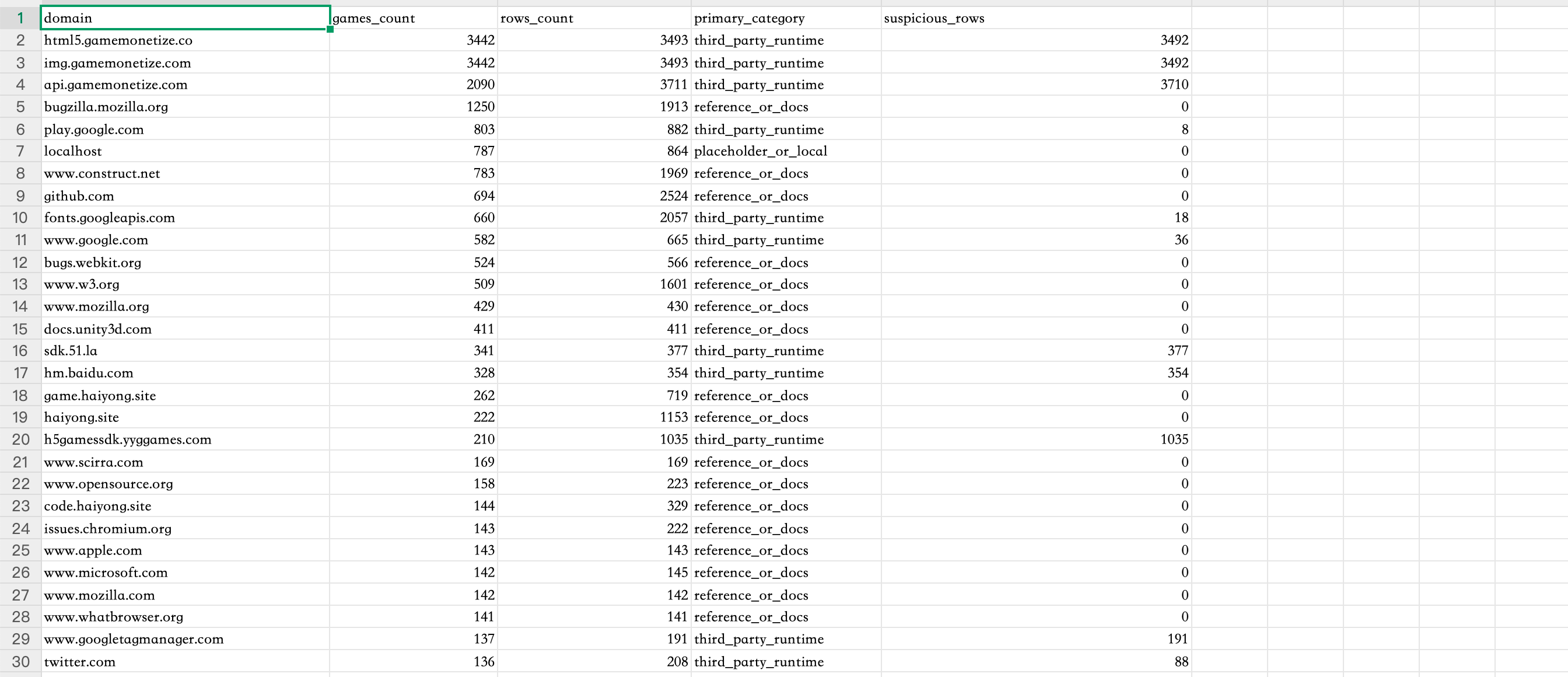
Case image: resize a real 2688 × 1160 table screenshot
Small labels, straight grid lines, and fine character strokes make this real PNG useful for seeing the separate effects of downscaling, upscaling, distortion, and output encoding.
Open the real resize case image
- The source dimensions are 2688 × 1160 pixels.
- The original PNG is 280,365 bytes (about 274 KB).
- Its aspect ratio is approximately 2.317:1; target dimensions should preserve that ratio unless cropping is intentional.
Blur, pixelation, and stretching have different causes
Downscaling maps many source pixels into fewer output pixels, so fine strokes and texture must be averaged or discarded. Upscaling maps limited source samples into more pixels, so interpolation estimates values but cannot recover detail that was never captured. Nearest-neighbor-like scaling exposes square pixels; smoother interpolation can hide squares but may soften edges. Stretching is different again: changing width and height independently alters the aspect ratio, turning circles into ovals and text into wide or narrow shapes even when the image remains technically sharp.
Viewing scale can mislead you. A browser may display an image at a CSS size different from its intrinsic pixel dimensions, and a high-density screen may use multiple device pixels for one layout pixel. A viewer at Fit Width also resamples the preview, while 100% may mean one image pixel per CSS pixel rather than one physical display pixel. Diagnose the exported file by recording its actual pixel dimensions, opening it at 100%, and comparing the same crop with the source. Do not judge quality only from a thumbnail, a messaging-app preview, or a zoomed browser canvas.
Calculate dimensions for the destination before resizing
Start from the final use: a web content slot, email limit, marketplace requirement, document placeholder, or print size. For proportional resizing, compute target height as target width divided by the source aspect ratio, or let the tool lock aspect ratio. Using the case image, a requested width should produce a corresponding height based on 2688/1160 rather than an arbitrary box. If the destination demands a different shape, crop intentionally to that ratio before or during resize; padding is another option when all source content must remain visible.
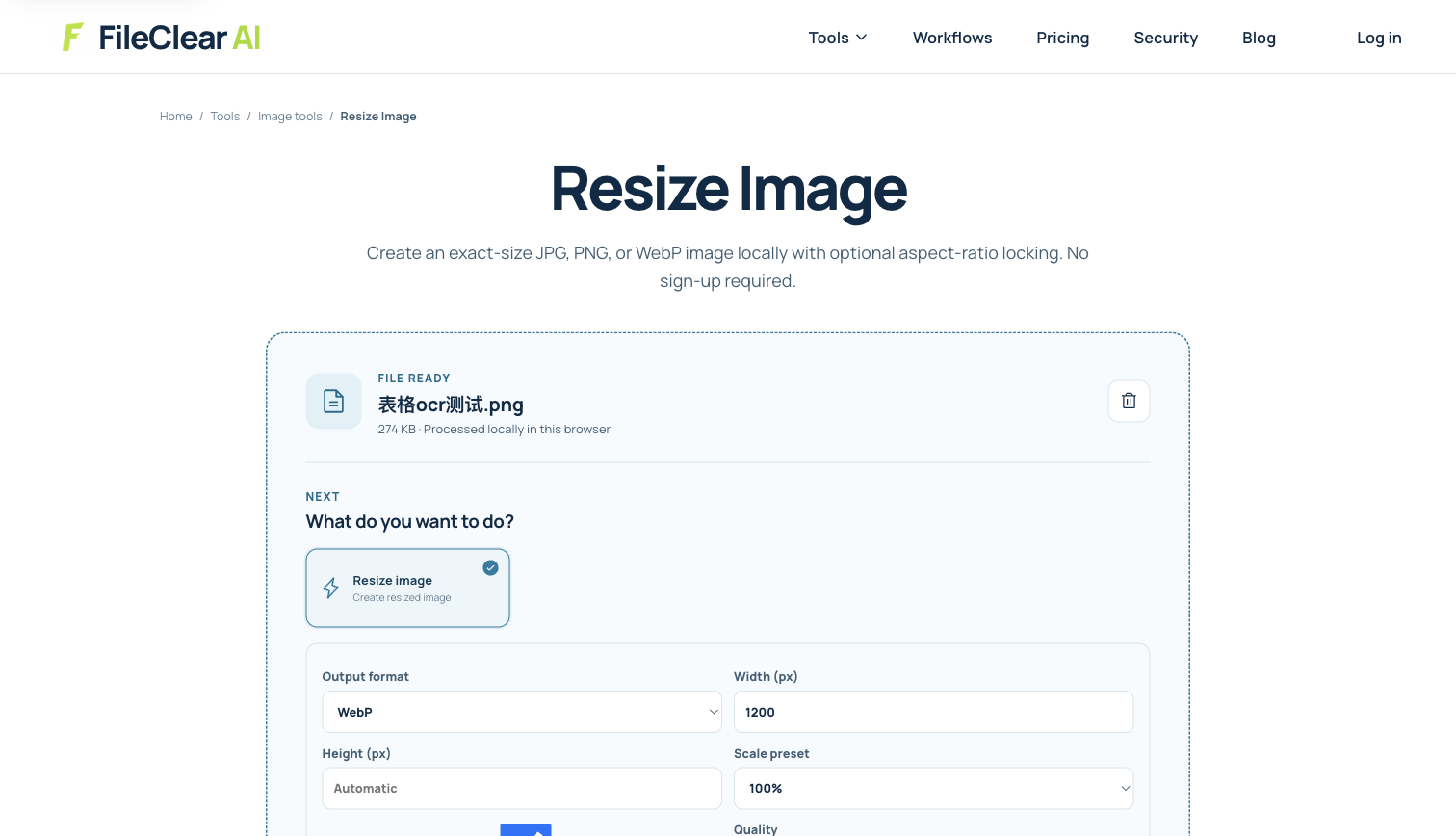
Upload the original PNG to Resize Image, enable aspect-ratio locking, and enter the smallest dimensions that still meet the real delivery requirement. The settings screenshot documents the real source and interface, not a claim that one preset is optimal for every screen. Avoid repeated small resizes: return to the original for each variant because every resampling pass can soften edges. Generate desktop, mobile, and thumbnail sizes directly from the master when several outputs are needed, then name them with dimensions so the intended use remains clear.
Match interpolation and output format to the content
Photographs tolerate smooth resampling and lossy compression better than screenshots, diagrams, logos, and small text. For the table case, keep PNG when crisp lines and text matter; converting to JPG can introduce ringing and color noise around edges even if dimensions stay the same. For photographs, a well-chosen JPG or WebP quality can reduce size substantially, but compression artifacts and resize blur are independent variables. First choose dimensions and inspect resampling, then tune encoding quality so you know which change caused any loss.
Moderate output sharpening after downscaling can restore perceived edge contrast, but it cannot restore deleted content and can create halos around text and rules. Excessive sharpening before resizing may be averaged away or amplify compression noise. Transparency also affects format choice: PNG and WebP can preserve alpha, while ordinary JPG must composite transparent pixels onto a background. If the output looks dark or fringed at edges, inspect transparency handling rather than blaming resize interpolation alone.
Verify intrinsic size, edges, and delivery behavior
Open the downloaded image as a standalone file and confirm pixel dimensions in file information. At 100%, inspect the smallest text, diagonal strokes, high-contrast edges, grid intersections, and any transparency boundary. Compare a fixed crop with the original and check that width-to-height ratio matches the intended crop or preserved source ratio. Then test the actual destination: a content management system, social platform, email client, or document editor may create another derivative and apply its own compression or scaling.
If the local export is sharp but the published version is blurry, retrieve the delivered asset and inspect its dimensions; the platform may have selected a thumbnail, enlarged a small variant, or recompressed it. If the local export is already soft, return to the original and choose a less aggressive reduction or content-appropriate resampling. When the target size exceeds the original, accept that ordinary upscaling is a presentation tradeoff, not recovered detail. Keep the master file so future larger outputs do not start from an already reduced derivative.
Build and test a small delivery-size matrix
When one image appears in several placements, export from the master for each real display size instead of creating every variant from the smallest derivative. List the intrinsic width and height, expected CSS or document size, device-density requirement, format, and maximum byte budget for each destination. A thumbnail, email header, product card, and print insert should not automatically share one raster file. The matrix makes unintended enlargement visible before users see blur and prevents oversized files from being sent where a smaller approved asset is sufficient.
Test the matrix with difficult details from the actual image: small labels, faces, diagonal edges, thin rules, and transparency boundaries. Retrieve the delivered version from the website or platform and compare its pixel dimensions with the file you uploaded, because content systems often create additional variants. If a destination repeatedly chooses a low-resolution thumbnail, fix its asset selection or markup rather than sharpening the wrong source. Keep the original master so future destinations can receive a fresh export without cumulative resampling or compression loss.
Continue this file task
Related guides
Frequently asked questions
- Why does an image look blurry after making it smaller?
- Downscaling combines or discards source pixels. Fine lines and small text can lose contrast, and the viewer may rescale the output again. Inspect at 100% and choose dimensions suited to the destination.
- Can I enlarge an image without losing quality?
- Ordinary upscaling can interpolate smoother pixels but cannot recreate missing source detail. Results depend on source quality and content, so avoid presenting enlargement as lossless recovery.
- Why is my resized image stretched?
- Its width and height were changed without preserving the source aspect ratio. Lock the ratio, crop to the required shape, or add padding instead of independently forcing both dimensions.
- Should I use PNG or JPG after resizing?
- PNG often suits screenshots, small text, line art, and transparency. JPG often suits photographs where a smaller lossy file is acceptable. Format and dimensions solve different problems.
Sources and further reading
- Image size and resolution — Adobe Photoshop Help
- CanvasRenderingContext2D: imageSmoothingEnabled — MDN Web Docs
- Responsive images — web.dev